
This guide details the full procedure for creating and configuring a Stripe environment in production mode.
If you want to run tests, a dedicated test environment is available. We strongly recommend creating and using a test environment beforehand to validate your configuration.
You can find the procedure to create this test environment as well as the associated link here: https://docs.stripe.com/sandboxes/dashboard/manage#create-a-sandbox
The content of this guide is based on setting up a production environment. Note, however, that the interfaces in production and test environments are very similar, and the steps remain largely the same.
Configure the Stripe Connector (Production Mode)
A. IN STRIPE
To configure your Stripe connector, you will first need two pieces of information from your Stripe dashboard:
- Public key
- Secret key
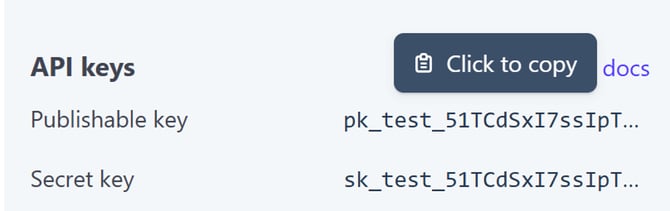
To find them, go to your Stripe dashboard. The data is directly visible in a panel on the home page.
Click on the line from which you want to copy the key.
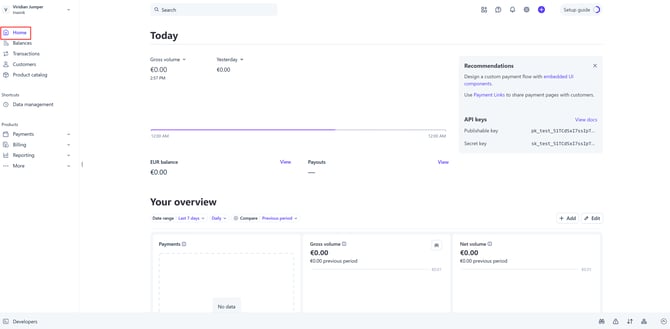
Click on the line from which you want to copy the key.
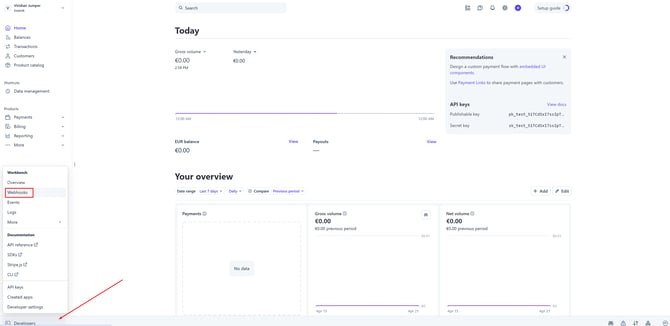
Create a Webhook
To create your webhook, click on the Developers > Webhooks button at the bottom right.
Then click on “Add destination” in the center of your screen.
Select Events
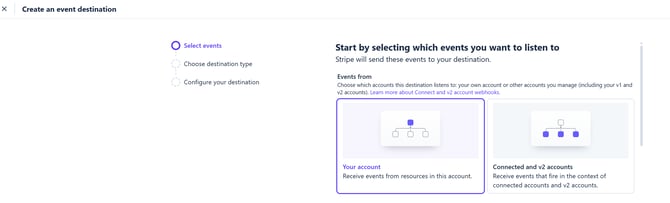
When configuring a webhook in Stripe, you need to choose which account the events apply to. Select “Your account”.
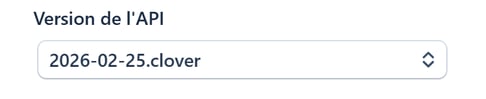
Select the API version: 2026-02-25.clover (this version may evolve on Stripe’s side).
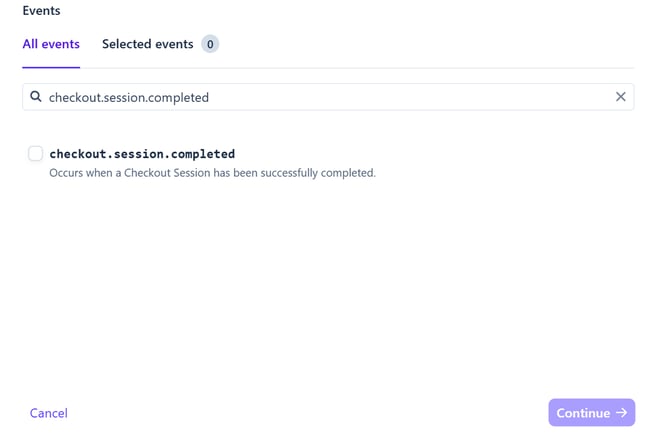
Then click on “All events”.
In the search field, enter: checkout.session.completed
Select the line, then click “Continue”.
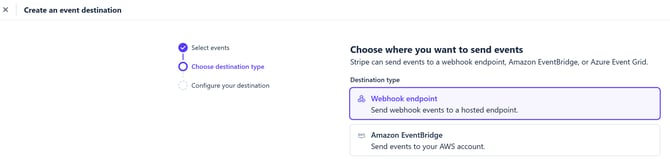
Select the destination type: “Webhook endpoint”, then click “Continue”.
Configure Your Destination
-
Give your destination a name.
-
In the endpoint URL, enter the following address:
https://api-front.inwink.com/callback/stripe/notify -
You can also add a description.
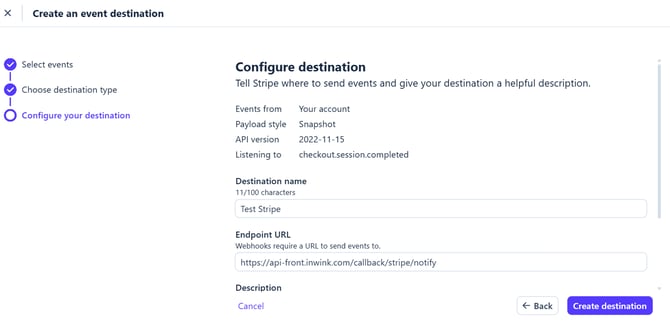
Once all information is filled in, click “Create destination”.
You will then be redirected to your dashboard after creating the webhook.
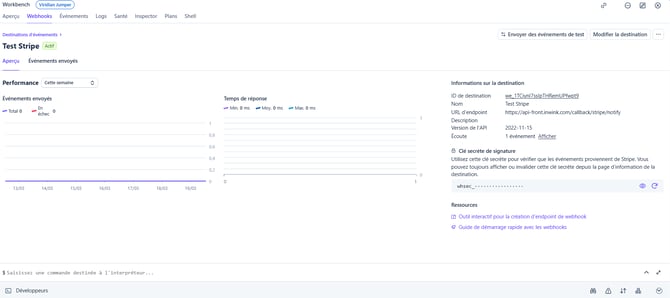
Options to update endpoint details, or to enable/disable it, are available in the menu accessible via the three dots on the right.

Locate your Stripe API Keys
You can find your public key and secret key in two places in Stripe to enter them into inwink:
- In the dashboard
- In the Developers > API keys tab
B. IN INWINK
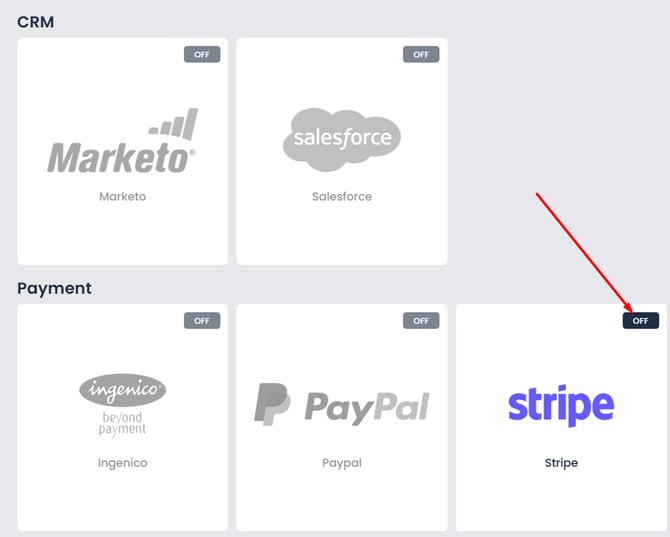
In your event back office, go to the My Event > Third-party integrations tab and activate the Stripe connector by checking the Stripe box.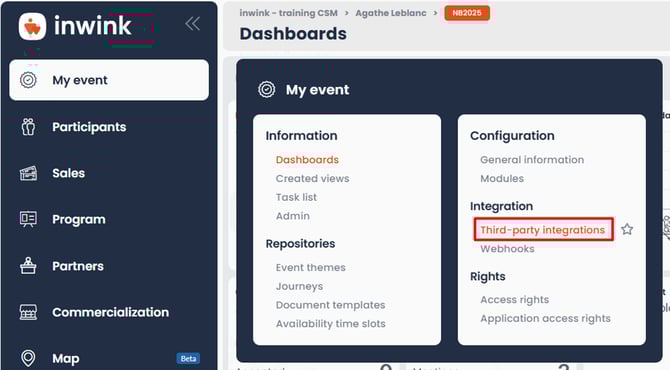
A configuration window opens. Enter the public key and secret key, and enable Live mode if you are adding production API keys.
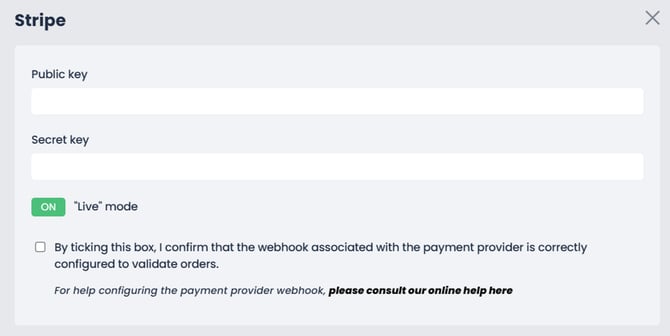
Once done, click VALIDATE at the bottom right of the window, then click SAVE at the top right of the Third-party integrations page.
If you encounter error 107, it usually corresponds to one of the following:
- An issue with the identifier or API keys — please check your input in the Stripe configuration
- A ticket price that is too low — the amount must be greater than €0.50