---
title: Marketing emails and marketing subscription management
description: Learn how inwink manages marketing emails through subscription-based consent, including how contacts choose their preferences, how subscriptions are used for targeting, and how to ensure GDPR-compliant email campaigns with proper preference and unsubscribe management.
---
[Skip to content](https://help.inwink.com/marketing-emails-and-marketing-subscription-management#main-content)
- [English](https://help.inwink.com/marketing-emails-and-marketing-subscription-management)
- [Français](https://help.inwink.com/fr/emails-marketing-et-gestion-des-abonnements-marketing)
English
Show submenu for translations
[More support](https://help.inwink.com/kb-tickets/new?hsLang=en)
[](https://help.inwink.com/?hsLang=en)
- [Knowledge base](https://support.inwink.com/)
- [My tickets](https://support.inwink.com/tickets)
Open main navigation
Close main navigation
- [Knowledge base](https://support.inwink.com/)
- [My tickets](https://support.inwink.com/tickets)
- - [English](https://help.inwink.com/marketing-emails-and-marketing-subscription-management)
- [Français](https://help.inwink.com/fr/emails-marketing-et-gestion-des-abonnements-marketing)
English
Show submenu for translations
- [More support](https://help.inwink.com/kb-tickets/new)
Hello ! How can we help you?
- There are no suggestions because the search field is empty.
1. [Help center](https://help.inwink.com/?hsLang=en)
2. [Data](https://help.inwink.com/data?hsLang=en)
3. [Audience](https://help.inwink.com/data?hsLang=en#audience)
# Marketing emails and marketing subscription management
## This help article explains how inwink manages marketing emails through marketing subscriptions, including user consent: creation, consent collection, use in email sends, and preference management.
### **Introduction**
Marketing email management in inwink is based on a simple principle: each contact chooses which communications they want to subscribe to.
In the back office, this management is based on the concept of **subscriptions to mailing lists**, which allows you to manage campaign targeting more effectively.
Each subscription corresponds to a type of communication, such as newsletters, invitations, partner communications, etc., and must be based on explicit consent collected beforehand.
In other words:
- you manage your email sends through subscriptions;
- contacts choose which communications they want to subscribe to;
- you remain responsible for the consent associated with these subscriptions.
Marketing emails can be created and sent from:
- an audience;
- an event;
- a community.
Marketing subscription fields are always created at audience level, from the Contacts view. They can then be linked to the registration forms of your events or communities.
This feature allows you to:
- respect user preferences;
- better target your communications;
- structure your marketing email sends;
- support regulatory compliance, including GDPR and email marketing best practices;
- improve email quality and deliverability;
- centralize subscription preferences on the contact record.
The organizer is responsible for:
- defining the types of subscriptions used;
- adding these subscriptions to their forms;
- collecting the associated consent;
- using subscriptions when sending marketing emails.
---
### **How it works**
The system is based on **marketing subscription fields**.
Each field represents a type of communication, for example: newsletter, event invitations, partner communications, community updates, commercial information, etc.
The process works as follows:
1. The organizer creates marketing subscription fields at audience level.
2. These fields can be added to registration forms for events or membership forms for communities.
3. Participants, members or contacts choose which communications they want to subscribe to.
4. Preferences are automatically added to the contact record in the audience.
5. Marketing emails, which can be sent from the audience, an event or a community, are sent only to contacts subscribed to the targeted communications.
⚠️ **Marketing email rules**
- A marketing email can only be sent to contacts subscribed to the targeted communications.
- If no subscription is provided, the contact will not receive any marketing email.
- Each marketing email send must be associated with one or more subscription types.
- Preferences can be changed by the contact at any time.
- Subscription data is centralized on the contact record in the audience.
- It is still possible to send an email without an associated subscription, under the organizer’s responsibility.
**⚠️ ⚠️⚠️ Schedulers and triggers**
A email marked as “marketing” can only be sent to contacts who have given their consent. This consent check only exists when sending from the people/members grid. Since scheduled emails and triggers are automatic sends, they do not apply this check: marketing emails are therefore deliberately hidden there, to avoid any sending to a non-consenting or unsubscribed contact.
In practice:
- Email intended for scheduling / a trigger: do not check “marketing”. Marketing send: go through the people/members grid.
- Envoi marketing : passer par la grille personnes/membres.
---
### **Creating marketing subscription fields**
### Steps to follow
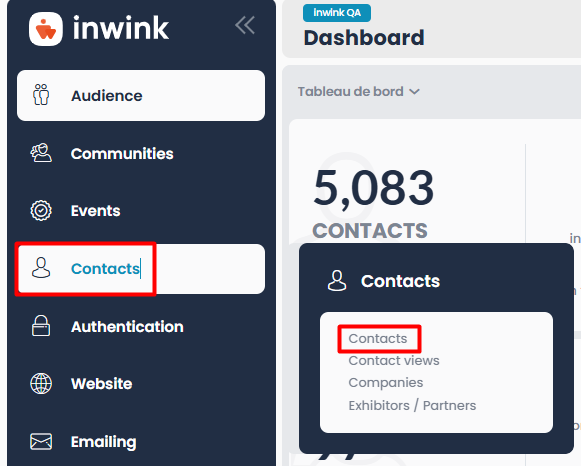
1. Go to your Audience back-office, in the **Contacts overview**:
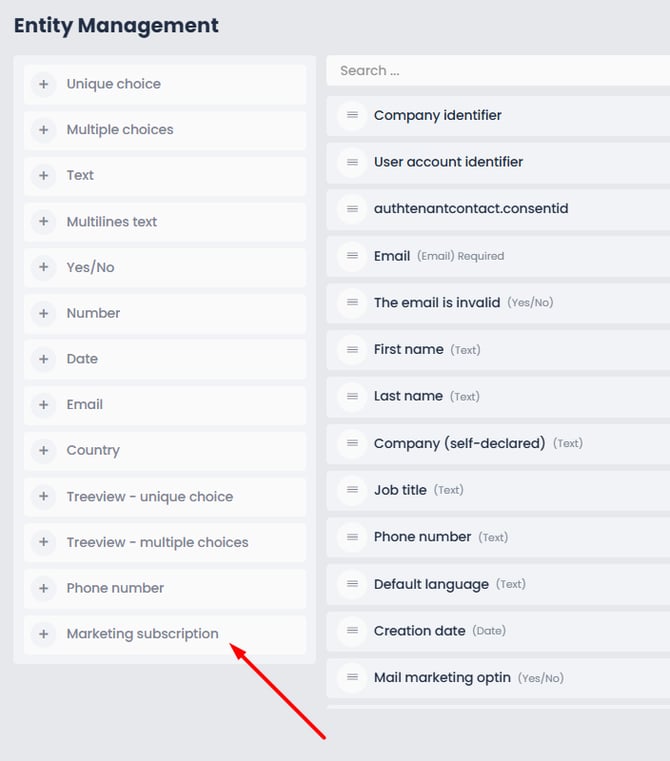
2. Click the small settings wrench icon \> Field management to create **new custom fields**
3. Click the **“Marketing subscription”** field type:
4. Define the name of this new field (e.g., Newsletter, Invitations, etc.).
**⚠️ You must create one field for each different marketing subscription.**

Good to know
- One field = one type of communication
- Possible values:
- Yes
- No
- Not specified
---
### **Adding marketing subscriptions to forms**
Marketing subscription fields created at audience level can be added to your registration or membership forms.
This allows users to directly choose which communications they want to subscribe to when registering for an event or joining a community.
These fields can be used in:
- event registration forms;
- community membership forms.
### Steps
1. Open the relevant form.
2. Add the marketing fields created from the audience.
3. Position them where you want in the form.
4. Publish the page containing your form.
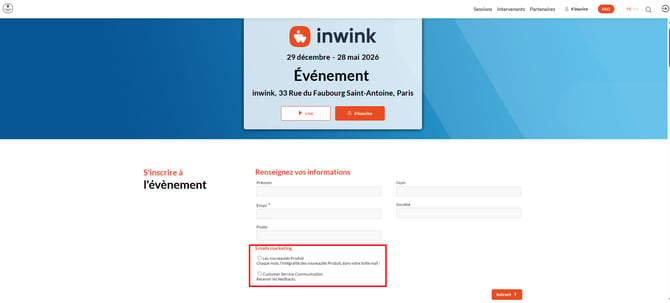
### Result
When registering, the user can:
- choose the communications they want to subscribe to
- have their selections immediately reflected in their contact record in DATA
---
### **Sending a marketing email from your Audience**
You can create and send marketing emails from your audience.
### Steps
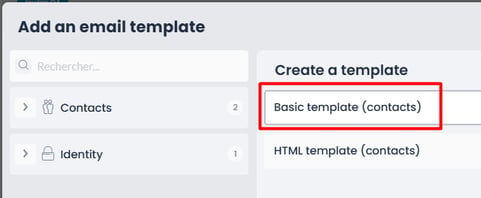
1. Create a **“Contacts”** type email from your Audience
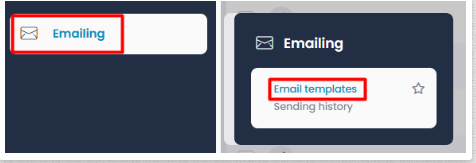
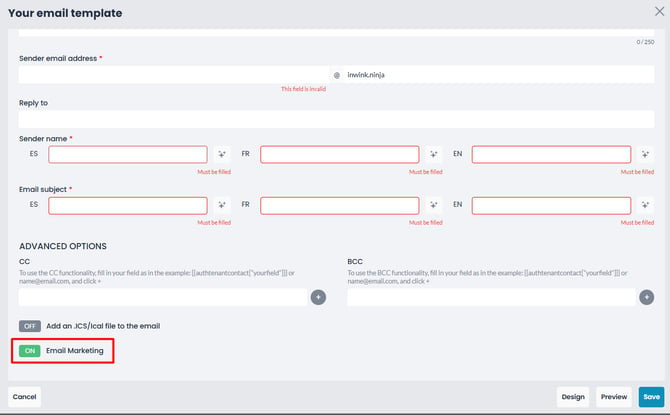
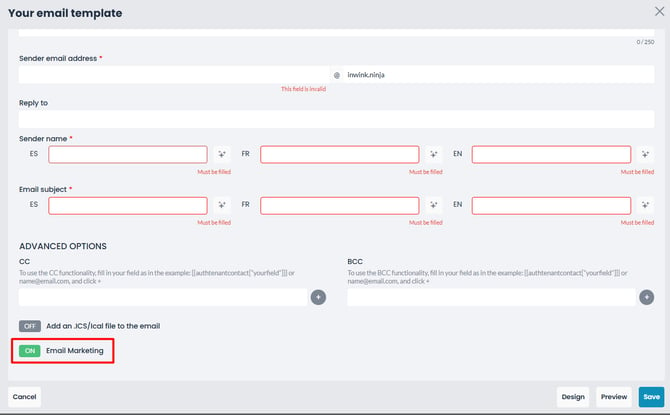
2. By default, the **“Email Marketing”** option is enabled
3. A “**Marketing subscription management**” block appears when the “Marketing Email” option is enabled. Drag and drop this block into your email content
4. Customize your email
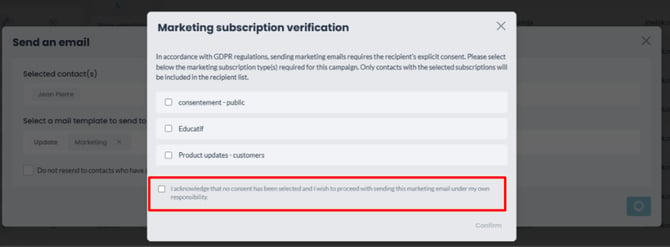
5. Send the email from the Contacts view. Before sending, a window will appear asking you to select the required subscription(s): only contacts who have agreed to these communication types will receive the email.
⚠️ In some cases, you can send an email without an associated subscription. To do this, check the option indicating that you are proceeding with the send under your own responsibility.
The email will then be sent without subscription-based filtering.
---
### **Managing marketing subscriptions from an event or a community**
Marketing emails can also be created from an event or a community.
This allows you to send marketing communications in an event or community context.
### How it works
Marketing subscription fields are still created at audience level. Once added to the event registration form or the community membership form, participants and members can choose which communications they accept to receive, or not, when completing these forms.
The data is automatically added to their contact record in the audience.
### Steps to send a marketing email from an event or a community
1. Go to the back office of your event or community.
2. Create your email.
3. Enable the **Marketing email** option.
4. Add the marketing subscription management block to the body of the email.
5. Customize your email.
6. Choose the relevant recipients.
7. Select the required subscriptions for the send.
**Only participants or members with the selected subscriptions will receive the email.**
### Good to know
If a participant has not given consent for the selected subscription, they will not receive the marketing email.
It is still possible to send the email without an associated subscription by using the option to send under the organizer’s responsibility.
---
### **Adding preference management to emails**
**Prerequisite: a root community** is absolutely required to correctly generate the unsubscribe link in the email received by the contact.
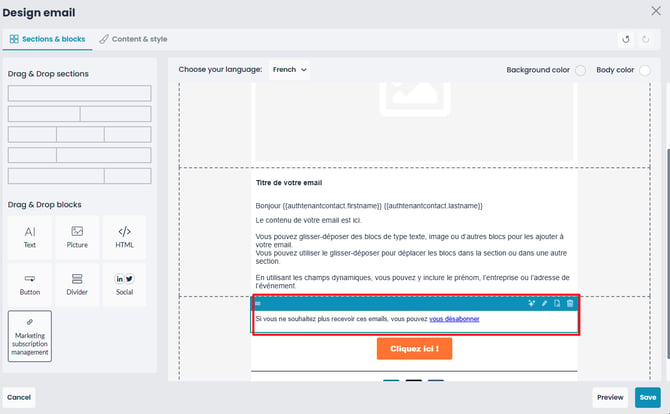
A marketing subscription management block, named **“Marketing subscription management”**, can be added to the body of your marketing emails. The **Marketing email** option must be checked for this block to appear.
This block allows recipients to manage their subscription preferences or unsubscribe from certain communications.
Once the block has been added to the email, a link will be visible to the recipient when they receive the message. By clicking this link, they will access a dedicated page allowing them to:
- view their marketing subscriptions;
- update their preferences;
- unsubscribe from certain communications.
### Steps
1. Open the email template
2. Add the **subscription management block
**
### Result
A secure link is generated allowing the contact to:
- view their subscriptions
- update their preferences
- unsubscribe from one or more communications.
---
### **Preference management page**
### How it works
The subscription management page is accessible via the link included in your marketing emails.
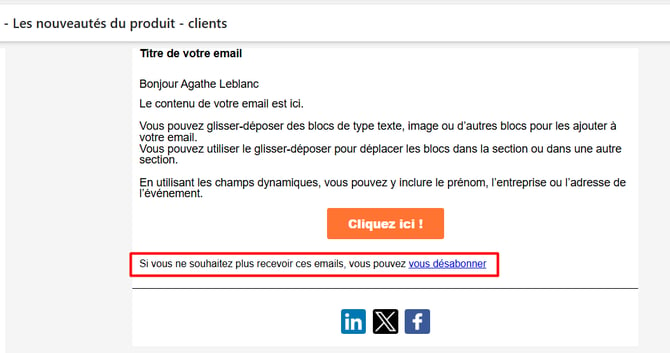
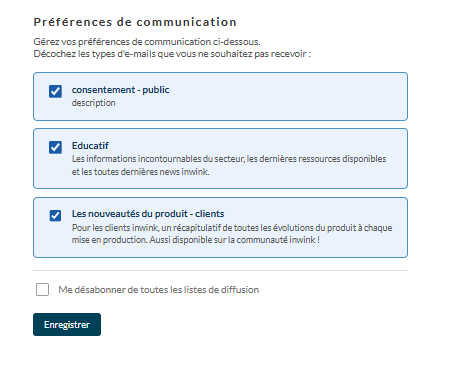
It allows contacts to:
- view all their subscriptions
- update their choices
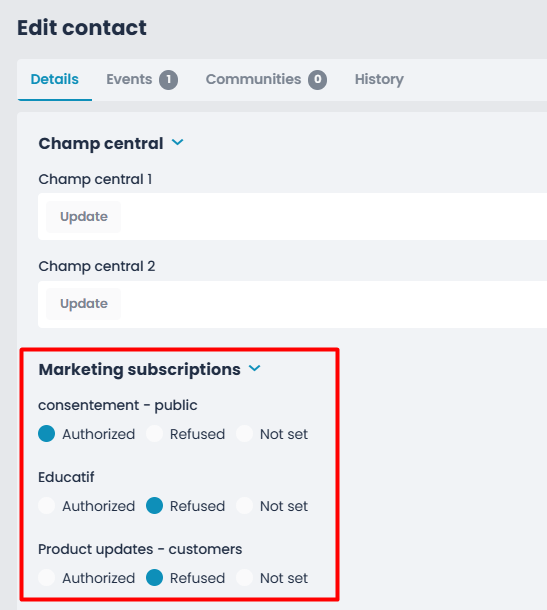
➡️ From the organizer’s side, this page is not customizable and automatically displays all configured marketing subscription fields.
As soon as a user updates their preferences, they are automatically updated in their contact record in the audience.
### **Manage preferences from a personal or member space**
Contacts can also manage their preferences directly from:
- their **personal space** for an event;
- their **member space** within a community.
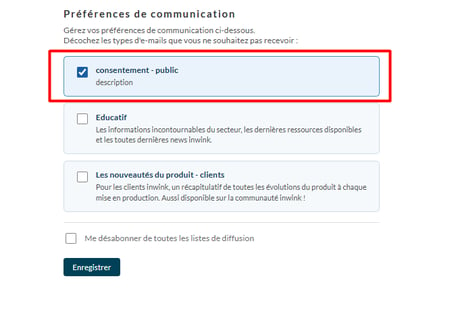
From the **My Profile** page, they simply need to click the **“Communication preferences”** button. A pop-up window then opens directly within their space, displaying the same options as the preference management page accessible from emails.
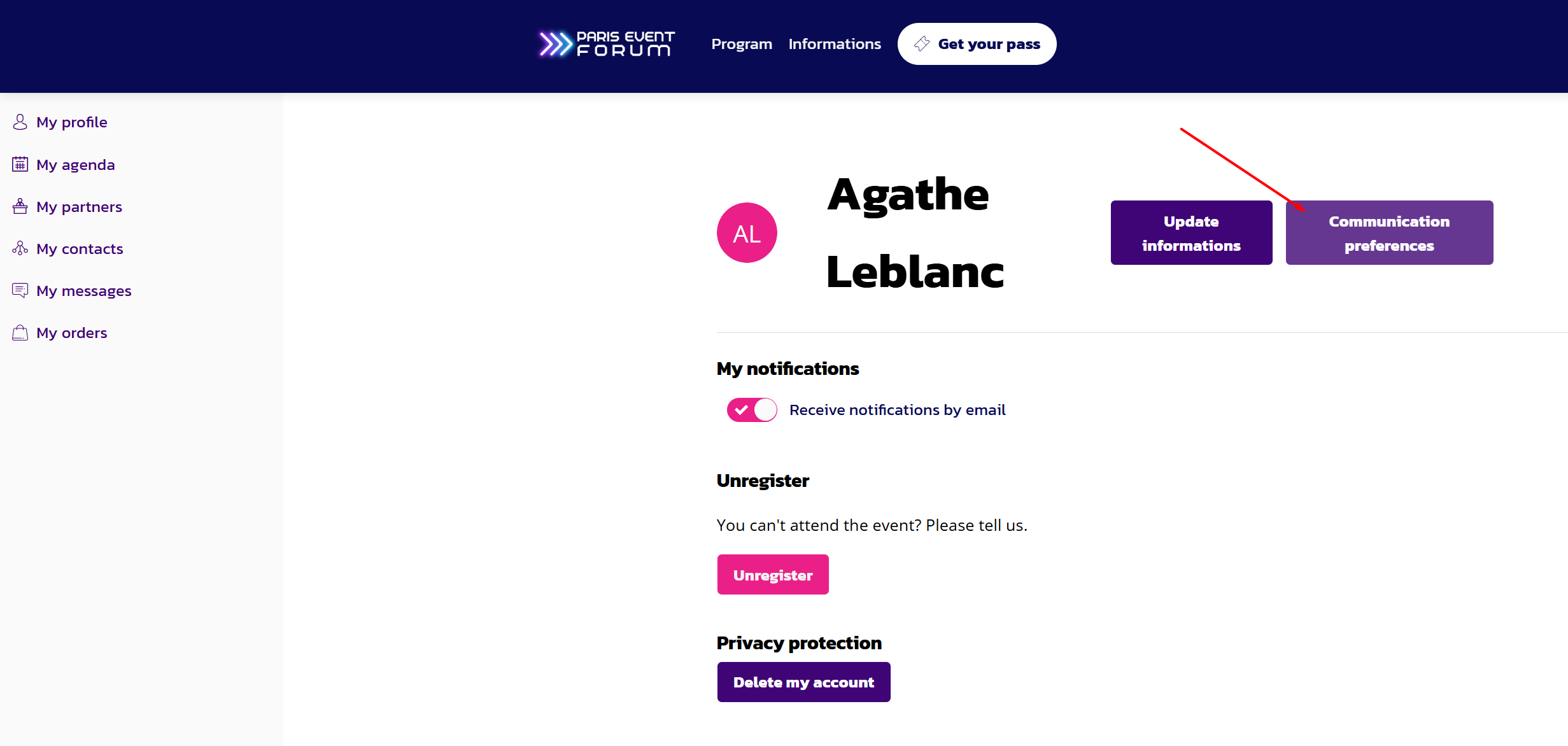
Contacts can then:
- update their subscriptions to the different types of communications;
- unsubscribe from all mailing lists;
- manage their preferences regarding email tracking pixels.
Any saved changes are automatically applied to their contact record.
---
### **Best practices**
To use marketing emails and subscriptions correctly, we recommend that you:
- define clear and understandable subscriptions;
- create subscription fields at audience level;
- add subscription fields to your registration or membership forms;
- check that consent is properly collected;
- enable the **Marketing email** option for the relevant emails;
- select the right subscriptions when sending;
- add the subscription management block to your marketing emails;
- regularly check the quality of your contact databases.
### **Summary**
- Marketing subscription fields are created at audience level.
- They can be used in event and community registration forms.
- Marketing emails can be created from an audience, an event or a community.
- Marketing emails cannot be scheduled or triggered because the consent check is not applied in these cases.
- Contacts, participants or members choose which communications they want to subscribe to.
- Subscription data is added to the contact record in the audience.
- Marketing emails automatically respect the selected subscriptions.
- Preferences can be updated through a secure link in the emails.
- The organizer remains responsible for the consent associated with each subscription.
- [Essentials](https://help.inwink.com/essentials?hsLang=en#main-content)
- [Grids](https://help.inwink.com/essentials?hsLang=en#grids)
- [The fields](https://help.inwink.com/essentials?hsLang=en#the-fields)
- [Publish](https://help.inwink.com/essentials?hsLang=en#publish)
- [Data](https://help.inwink.com/data?hsLang=en#main-content)
- [Audience](https://help.inwink.com/data?hsLang=en#audience)
- [Events](https://help.inwink.com/events?hsLang=en#main-content)
- [My event](https://help.inwink.com/events?hsLang=en#my-event)
- [Participants](https://help.inwink.com/events?hsLang=en#participants)
- [Program](https://help.inwink.com/events?hsLang=en#program)
- [Speaker workspace](https://help.inwink.com/events?hsLang=en#speaker-workspace)
- [Partners](https://help.inwink.com/events?hsLang=en#partners)
- [Business Meetings](https://help.inwink.com/events?hsLang=en#business-meetings)
- [Networking](https://help.inwink.com/events?hsLang=en#networking)
- [Ticketing](https://help.inwink.com/events?hsLang=en#ticketing)
- [Participant badge](https://help.inwink.com/events?hsLang=en#participant-badge)
- [inwink onsite](https://help.inwink.com/events?hsLang=en#inwink-onsite)
- [Online events](https://help.inwink.com/events?hsLang=en#online-events)
- [Video integration](https://help.inwink.com/events?hsLang=en#video-integration)
- [Online sessions](https://help.inwink.com/events?hsLang=en#online-sessions)
- [Interactions](https://help.inwink.com/events?hsLang=en#interactions)
- [Interactivity](https://help.inwink.com/events?hsLang=en#interactivity)
- [Call for Papers](https://help.inwink.com/events?hsLang=en#call-for-papers)
- [Community](https://help.inwink.com/community?hsLang=en#main-content)
- [Content](https://help.inwink.com/community?hsLang=en#content)
- [Forums](https://help.inwink.com/community?hsLang=en#forums)
- [Partner workspace](https://help.inwink.com/community?hsLang=en#partner-workspace)
- [Configuration](https://help.inwink.com/community?hsLang=en#configuration)
- [Groups](https://help.inwink.com/community?hsLang=en#groups)
- [Memberships](https://help.inwink.com/community?hsLang=en#memberships)
- [Ticketing](https://help.inwink.com/community?hsLang=en#ticketing)
- [Dashboards](https://help.inwink.com/dashboards?hsLang=en)
- [Emailings](https://help.inwink.com/emailings?hsLang=en#main-content)
- [Send emails](https://help.inwink.com/emailings?hsLang=en#send-emails)
- [Scheduled emails](https://help.inwink.com/emailings?hsLang=en#scheduled-emails)
- [Website](https://help.inwink.com/website?hsLang=en#main-content)
- [Participant space](https://help.inwink.com/website?hsLang=en#participant-space)
- [CMS](https://help.inwink.com/website?hsLang=en#cms)
- [Webmaster](https://help.inwink.com/website?hsLang=en#webmaster)
- [Languages and translations](https://help.inwink.com/website?hsLang=en#languages-and-translations)
- [Partner space](https://help.inwink.com/website?hsLang=en#partner-space)
- [Visual identity](https://help.inwink.com/website?hsLang=en#visual-identity)
- [Blocks](https://help.inwink.com/website?hsLang=en#blocks)
- [Registration forms](https://help.inwink.com/website?hsLang=en#registration-forms)
- [Commercialization](https://help.inwink.com/commercialization?hsLang=en#main-content)
- [Understand and prepare your sales setup](https://help.inwink.com/commercialization?hsLang=en#understand-and-prepare-your-sales-setup)
- [Configure and support the exhibitor journey](https://help.inwink.com/commercialization?hsLang=en#configure-and-support-the-exhibitor-journey)
- [Mobile application](https://help.inwink.com/mobile-application?hsLang=en#main-content)
- [Before you get started](https://help.inwink.com/mobile-application?hsLang=en#before-you-get-started)
- [Configure and customize your app](https://help.inwink.com/mobile-application?hsLang=en#configure-and-customize-your-app)
- [Test and publish your app](https://help.inwink.com/mobile-application?hsLang=en#test-and-publish-your-app)
- [Connectors](https://help.inwink.com/connectors?hsLang=en#main-content)
- [Paypal](https://help.inwink.com/connectors?hsLang=en#paypal)
- [Six Payment](https://help.inwink.com/connectors?hsLang=en#six-payment)
- [Power BI](https://help.inwink.com/connectors?hsLang=en#power-bi)
- [Adyen](https://help.inwink.com/connectors?hsLang=en#adyen)
- [Salesforce](https://help.inwink.com/connectors?hsLang=en#salesforce)
- [Hubspot](https://help.inwink.com/connectors?hsLang=en#hubspot)
- [Ingenico](https://help.inwink.com/connectors?hsLang=en#ingenico)
- [Zapier](https://help.inwink.com/connectors?hsLang=en#zapier)
- [Stripe](https://help.inwink.com/connectors?hsLang=en#stripe)
- [Marketo](https://help.inwink.com/connectors?hsLang=en#marketo)
- [Monetico](https://help.inwink.com/connectors?hsLang=en#monetico)
- [Make](https://help.inwink.com/connectors?hsLang=en#make)
- [MCP](https://help.inwink.com/mcp?hsLang=en)
[](https://www.inwink.com/)
Copyright © 2025, inwink
```json
{
"@context" : "https://schema.org",
"@type" : "VideoObject",
"contentUrl" : "https://4673921.fs1.hubspotusercontent-na1.net/hubfs/4673921/video_assets/213325123072/inherited/web_optimized.mp4",
"dateModified" : "2026-05-21T11:14:10.779Z",
"duration" : "PT32S",
"height" : 1080,
"name" : "Manage Subscription Groups and Fields in Inwink-1",
"thumbnailUrl" : "https://4673921.fs1.hubspotusercontent-na1.net/hubfs/4673921/Manage%20Subscription%20Groups%20and%20Fields%20in%20Inwink-1.mp4/medium.jpg",
"uploadDate" : "2026-05-21T11:13:58.761Z",
"width" : 1920
}
```
```json
{
"@context" : "https://schema.org",
"@type" : "Organization",
"address" : {
"@type" : "PostalAddress",
"addressLocality" : "Paris, France",
"postalCode" : "75011",
"streetAddress" : "33 Rue du Faubourg Saint-Antoine"
},
"email" : "contact@inwink.com",
"funder" : [ {
"@type" : "Organization",
"name" : "Infinite Square",
"url" : "https://www.infinitesquare.com/"
} ],
"logo" : "https://www.inwink.com/hs-fs/hubfs/inwink-H-rgb-1.png?width=140&name=inwink-H-rgb-1.png",
"name" : "inwink",
"owns" : [ {
"@type" : "Product",
"name" : "inwink",
"url" : "https://www.inwink.com/"
} ],
"sameAs" : [ "https://www.linkedin.com/company/inwink/", "https://twitter.com/inwink_fr", "https://www.facebook.com/inwink-177090639388227/", "https://www.youtube.com/channel/UCWHQtvE5NEL7ijTKl4pGp0A" ],
"url" : "https://www.inwink.com/"
}
```