
Important: installing your iOS app in beta testing requires two separate invitations: a first Apple Connect invitation, followed by a TestFlight invitation.
Step 1 — Accept the Apple Connect invitation
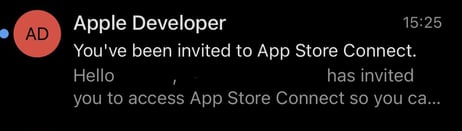
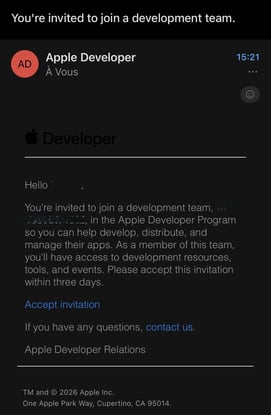
You will receive a first email from Apple inviting you to join the developer program.
From this email:
- Click Accept invitation.
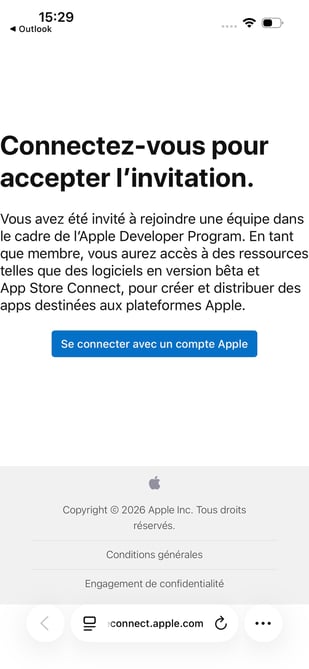
- Sign in with your Apple ID.
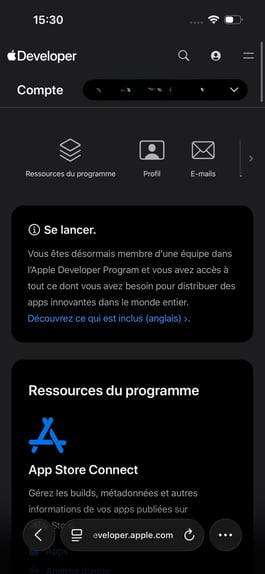
- Confirm that you want to join the program.
The invitation must be accepted within 24 hours of receiving it.
If the invitation has expired, contact the inwink team so that a new invitation can be sent to you.
Step 2 — Inform the inwink team
Once you have accepted the invitation and your Apple Connect access has been confirmed, inform your inwink contact.
This step is required so that the inwink team can then send you the TestFlight invitation.
Step 3 — Accept the TestFlight invitation
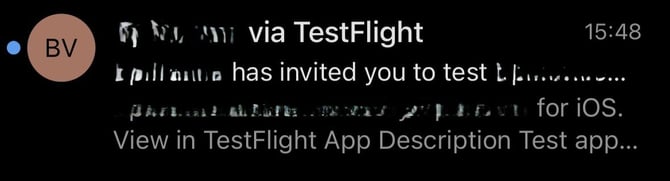
You will then receive a second email containing your invitation to test the app.
The email subject may look like:
“[App name] via TestFlight”
If you do not receive this email:
- wait between 30 minutes and 1 hour
- check your Spam folder
- make sure you have informed the inwink team after accepting the first invitation.
Step 4 — Install TestFlight
TestFlight is Apple’s app for installing and testing beta versions of applications.
If TestFlight is not already installed on your device:
- Open the App Store on your iPhone or iPad
- Search for TestFlight (Apple’s official app)
- Tap Get
- Sign in with your Apple account
- Wait for the installation to complete.
Step 5 — Install your app
Once TestFlight is installed:
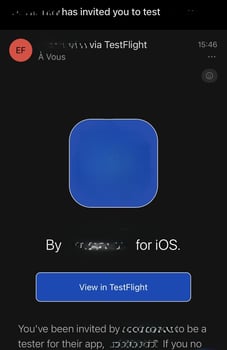
- Open the TestFlight invitation email
- Click View in TestFlight
- TestFlight opens automatically
- Tap Install
- Once the installation is complete, tap Open
Tip: use a Wi-Fi connection when downloading the app.
Step 6 — Access preview mode
Preview mode allows you to view your event while it is being configured, before it goes live.
From the app:
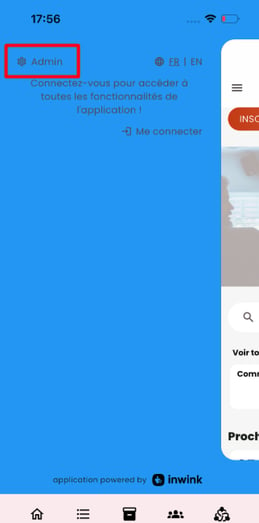
- Open the burger menu
- Select Admin mode
- Tap Switch to preview
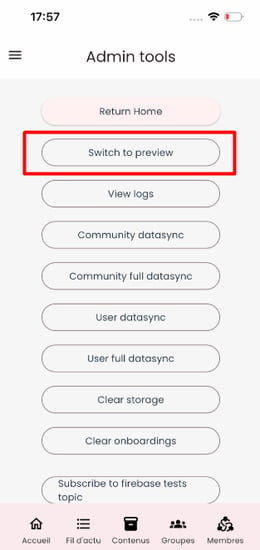
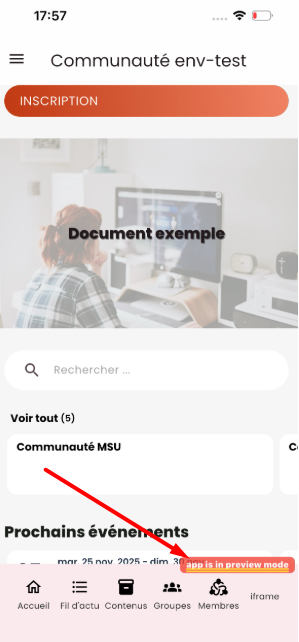
Your app is now displayed in preview mode.
A red banner appears in the app so you can distinguish preview mode from production mode.
Step 7 — Test your changes in preview mode
Once preview mode is enabled, you can continue configuring your event from your inwink back office and check the result directly in the app.
Changes made to your content can therefore be viewed in the app throughout the configuration and testing phases.
Key takeaways
To install your iOS app in beta testing:
- first accept the Apple Connect invitation
- then inform the inwink team
- accept the TestFlight invitation
- install the app on your device
- finally, enable preview mode from the Admin menu.
You can then test your app before it goes live.