The CNIL adopted deliberation no. 2026-042 of March 12, 2026, concerning tracking pixels used in emails. This recommendation aims in particular to better inform recipients and enable them to control the use of these tracking technologies.
To support this regulatory development, inwink allows each contact to manage the tracking of opens and clicks in the emails they receive.
This feature applies to emails sent from:
- Audiences
- Events
- Communities
What is a tracking pixel?
An email tracking pixel is used to measure how a recipient interacts with an email, including:
- Whether the email was opened
- Whether the recipient clicked a link in the email
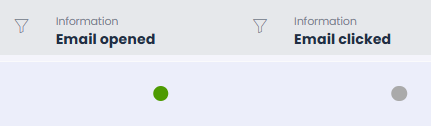
This information is used, in particular, to populate the performance statistics of sent campaigns.
Contacts can choose to disable this tracking from their communication preferences page.
To learn more about tracking pixels, you can read the CNIL recommendations by clicking here: Tracking pixels in emails.
What is the default behavior?
By default, open and click tracking is enabled for emails generated with inwink.
To disable tracking, the contact must update their choice from their communication preferences page, either through their personal account or via a link included in emails.
Once their choice has been saved, it applies to all emails sent from the audiences, events and communities with which they are associated.
Key information
Disabling tracking requires an action from the contact. Until they update their choice, tracking remains enabled.
How is the tracking option added to the communication preferences page?
inwink automatically adds a dedicated email tracking option to the communication preferences page.
The organizer does not need to configure anything: the option is automatically available on this page.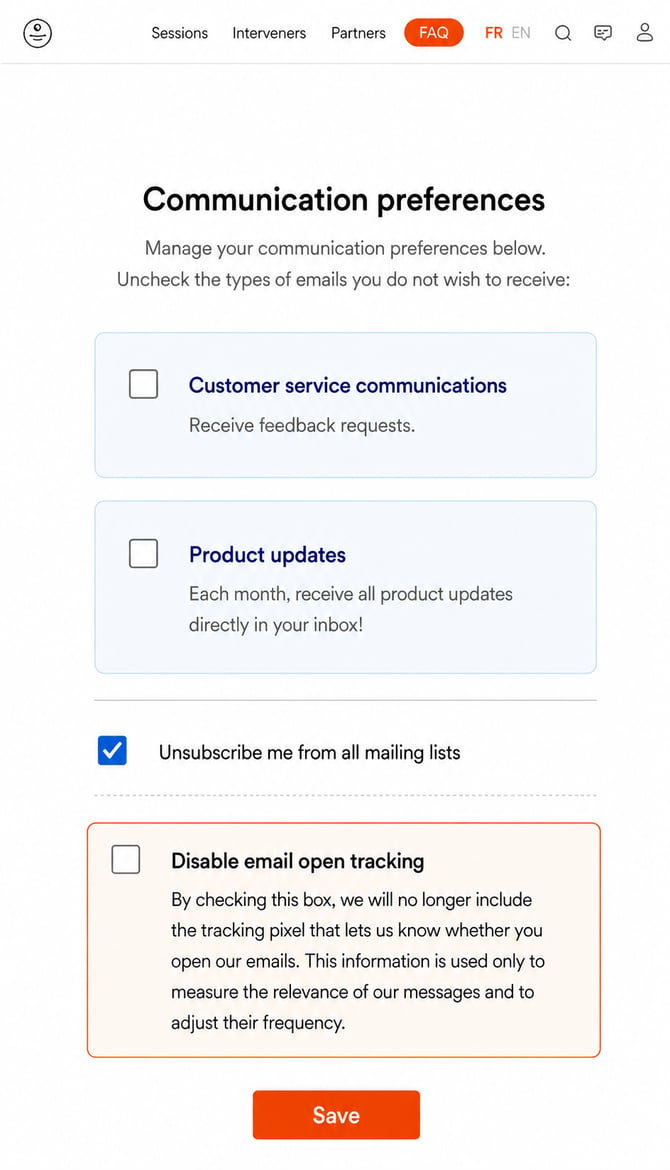
Contacts can then choose whether to allow or disable email open and click tracking.
How can contacts access their communication preferences?
Contacts can access their communication preferences page through the dedicated link included in the emails they receive.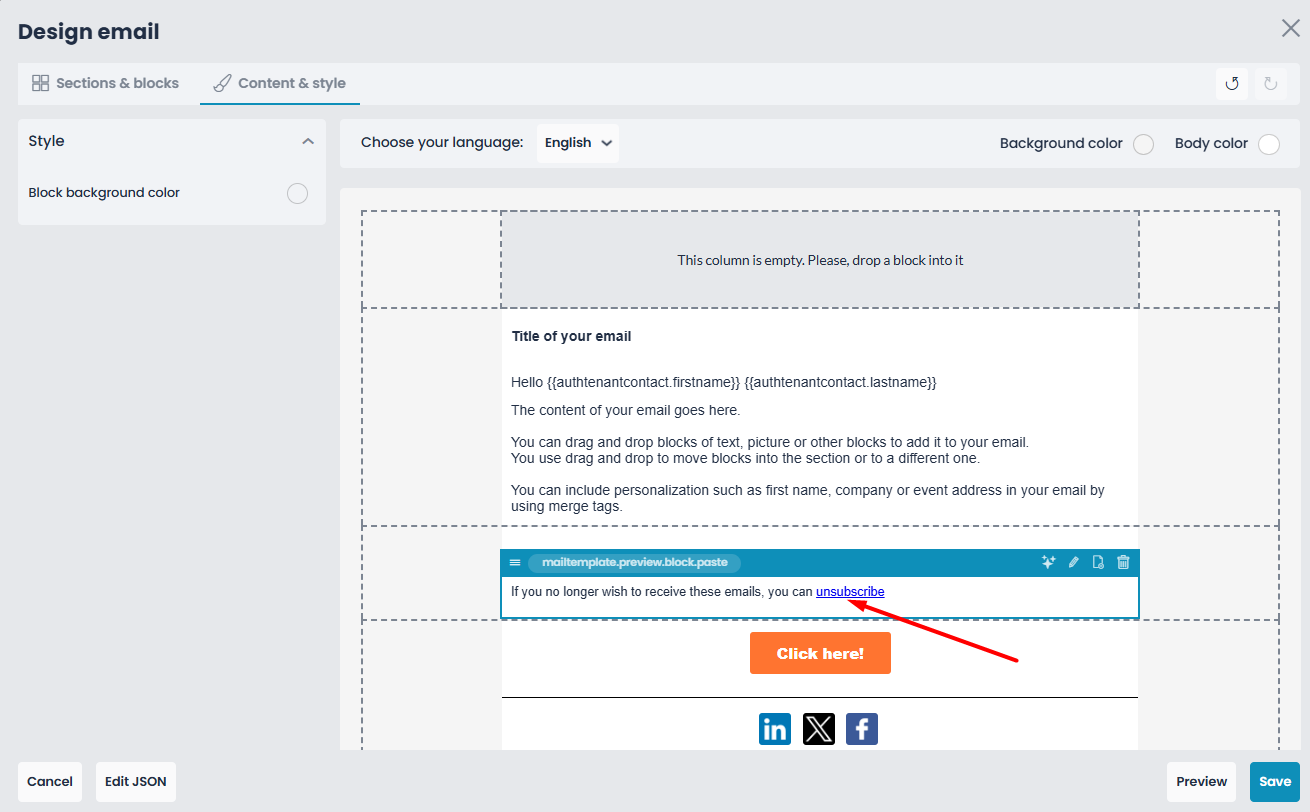
A button is also automatically added to their personal account.
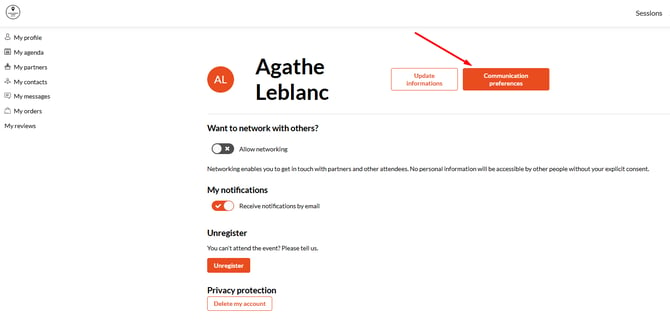
This button gives them direct access to all their communication preferences.
From this single access point, they can update:
- Their communication preferences
- Their choice regarding email open and click tracking
The organizer does not need to take any action for this button to appear in the personal account.
View or update a contact’s choice as an organizer
The contact’s email tracking preference is available in their audience contact record through the “Disable email open tracking” field.
The organizer can view and individually update the value of this field. 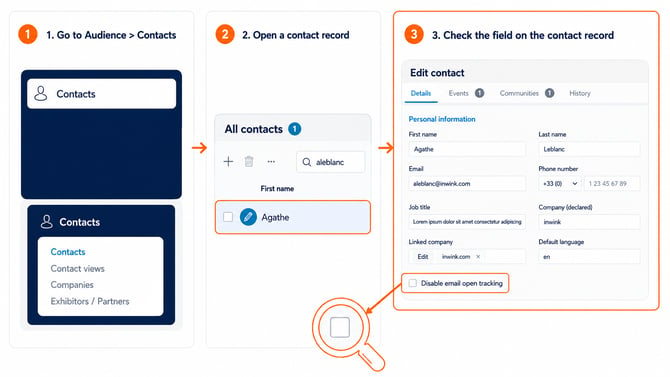
Add the field to a form
The email open tracking field can be added to event or community forms.
For example, it can be added to:
- An event registration form
- A community membership form
This allows contacts to make their choice directly as part of the relevant journey, in addition to using the communication preferences page. 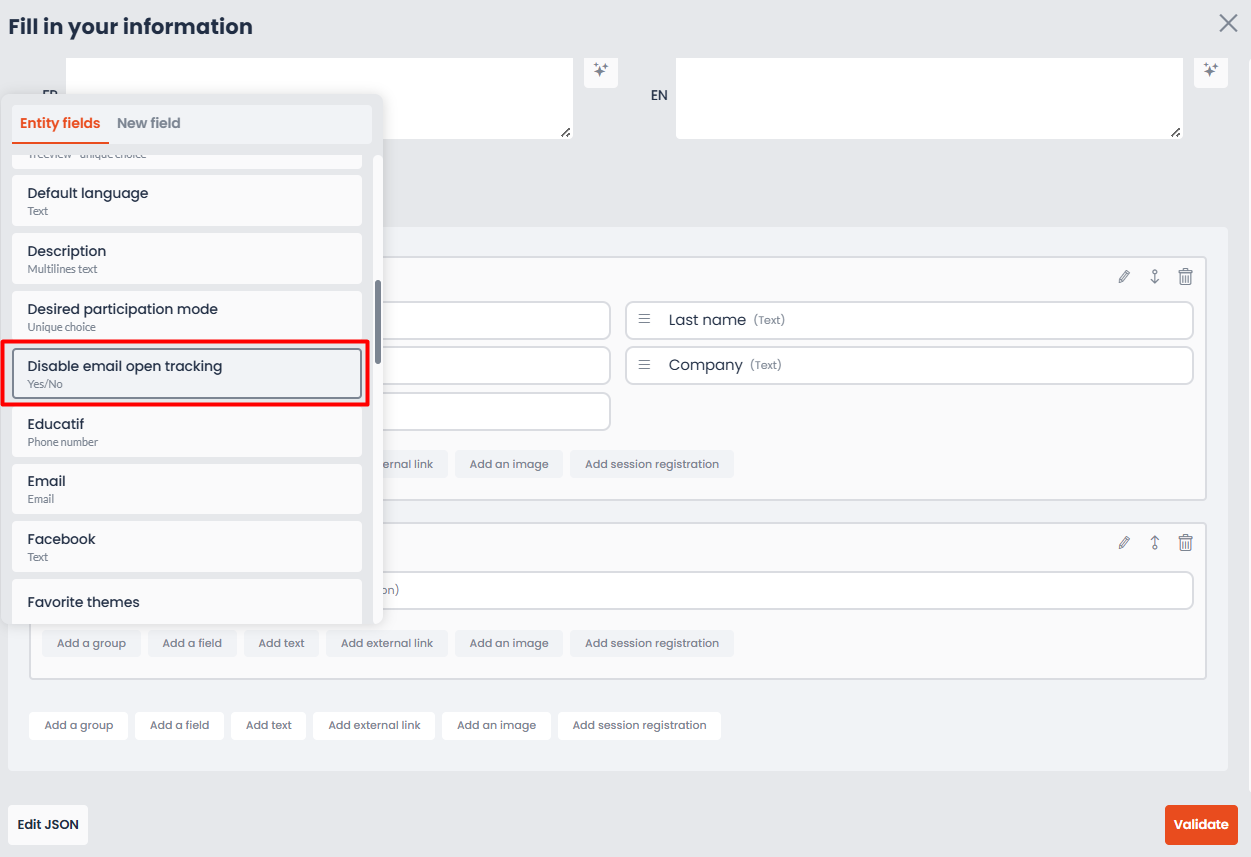
Understand open and click statuses in the sending history
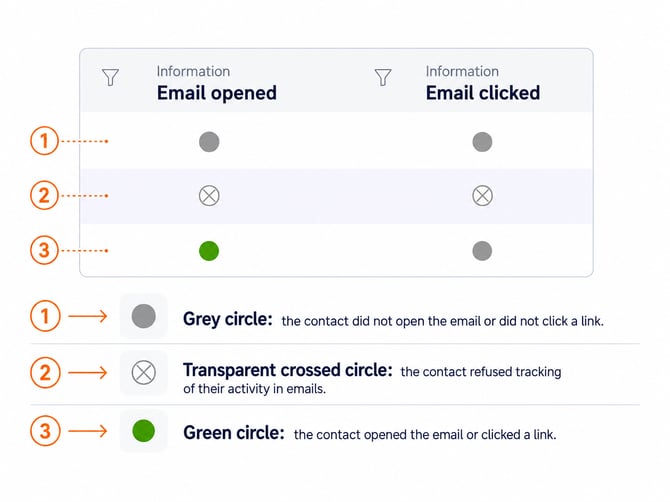
In the email sending history, the Email opened and Email clicked columns distinguish between three situations.
These indicators work in the same way for emails sent from an audience, event or community.
- Grey circle: The contact has not opened the email or clicked a link.
- Green circle: The contact has opened the email or clicked a link.
- Crossed-out transparent circle: The contact has declined email activity tracking. Their opens and clicks are therefore no longer reported in the sending history.
View email performance
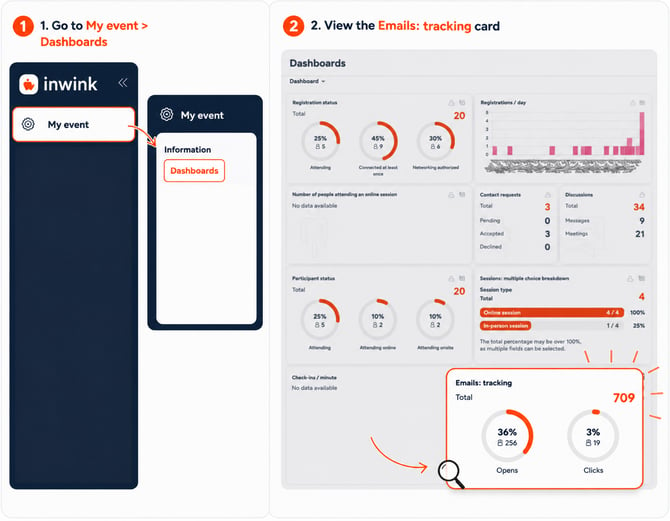
A card available in the dashboard displays the performance of sent emails.
It shows:
- The email open rate
- The email click-through rate
These indicators help assess recipients’ engagement with communications sent from inwink.
Disable tracking for a specific email
This option allows the organizer to disable tracking for a specific email without changing the contact’s general preference for other communications.
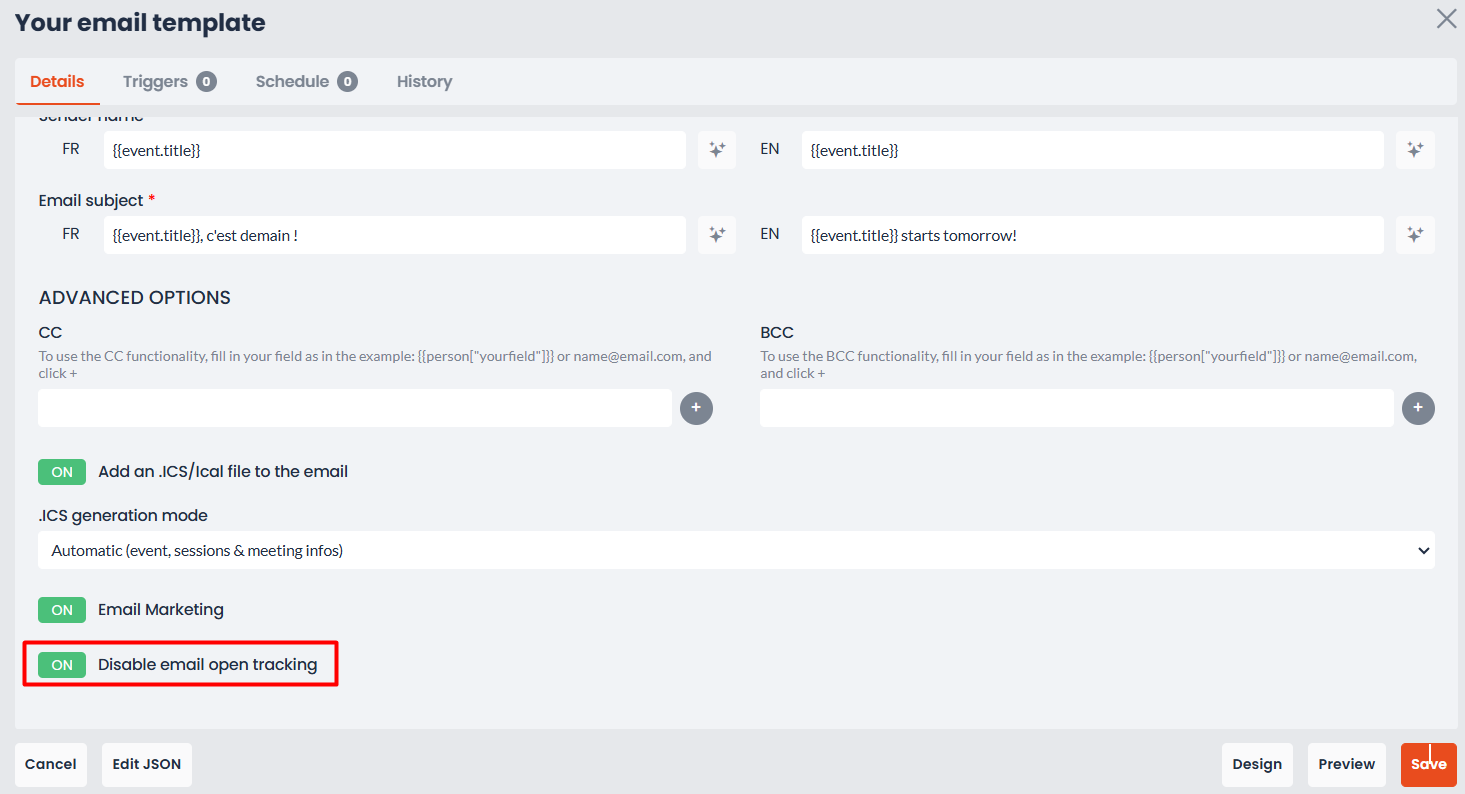
To do so, open the relevant email, edit it and enable the following option: