
Enabling Simulive
In the community, you can create a webinar and check the "Enable simulive" option when adding a video file.
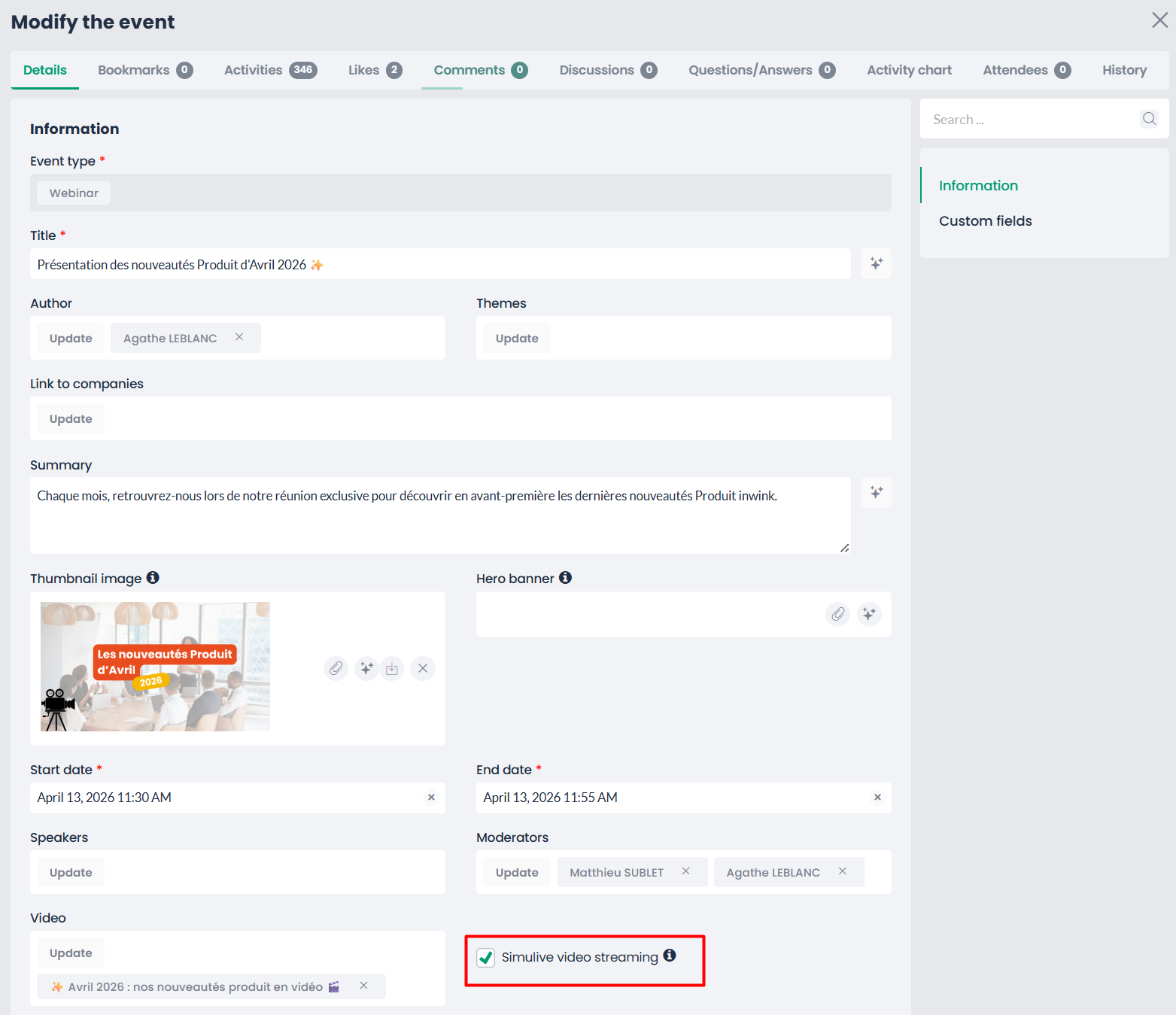
Once activated:
- The video will be automatically broadcast at the scheduled time
- The launch is triggered based on the start date set in the event details
Date Management
Two fields are essential when creating your webinar:
- Start date: determines when the simulive begins
- Publication date: controls when the event becomes visible in the list
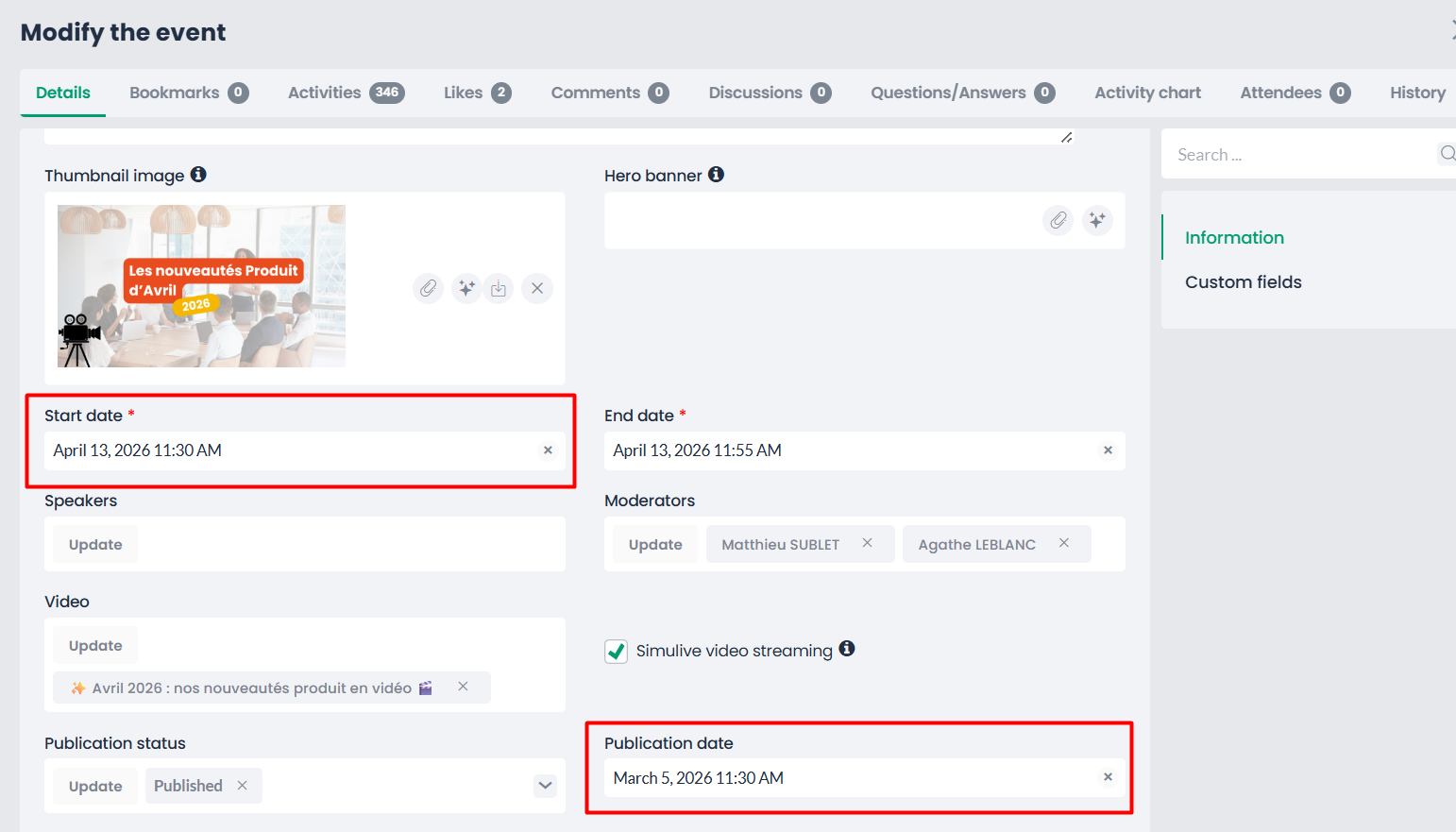
👉 Example: If the publication date is set to April 13 at 4:00 PM, the webinar will not appear in the event list before that time.
Adding the Video: Two Possible Cases
1. Adding the video directly in the webinar
If you add your video when creating the webinar:
- It is automatically set as a resource
- It will not appear in the public video library
2. Adding the video via the "Videos" section
If you first upload the video in the Videos section of the community:
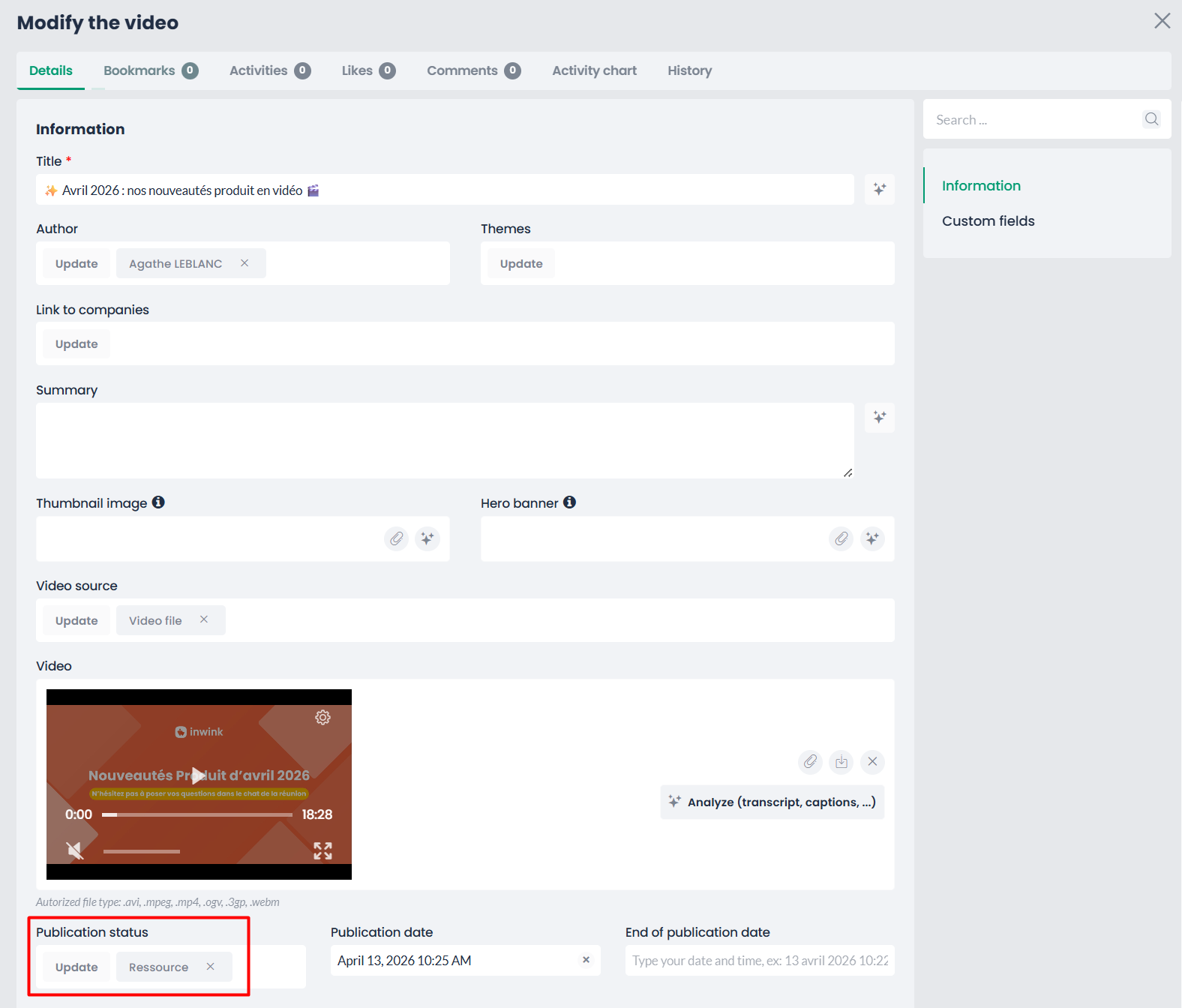
- It is not automatically set as a resource
- You must check the "Resource" option to ensure it is used only within the webinar
👉 Checking the "Resource" option is mandatory for webinar use. This prevents videos intended only for simulive sessions from being publicly visible.
⚠️ Key Takeaways
- Simulive broadcasts a pre-recorded video at a specific time, like a live session
- The start date triggers the broadcast
- The publication date controls visibility in the community event list
- The resource status is essential to manage video visibility within a webinar