The new inwink editor is a modern editor based on content blocks.
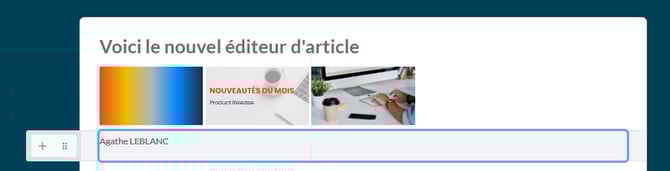
Each element of the document (text, heading, list, image, quote, etc.) is an independent block that you can easily create, edit, or move.
This approach allows for:
-
smoother and more intuitive editing
-
flexible layout
-
quick insertion of new content
For new articles (created from March 13, 2026):
All new articles will automatically be created using the new editor.
For existing articles:
Articles created before this date will remain in the old editor. If you want to change the format of such an article, we recommend recreating it using the new editor.
Create your article
From your community back office, go to the Content > Articles tab, then click the “+” button to create your article.
A page opens with the article settings on the left and the article editor on the right.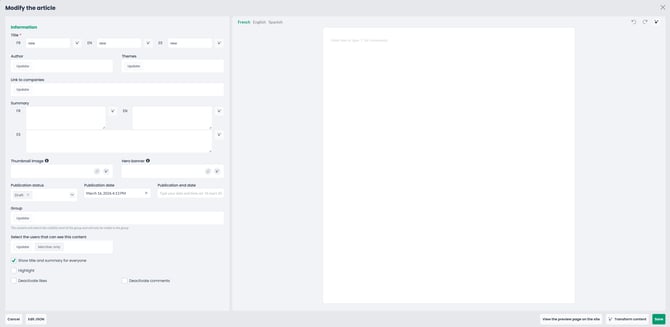
You can also access this screen from your published community if you are an administrator of the community.
Start writing
Add content
Simply click anywhere on the page to start writing.
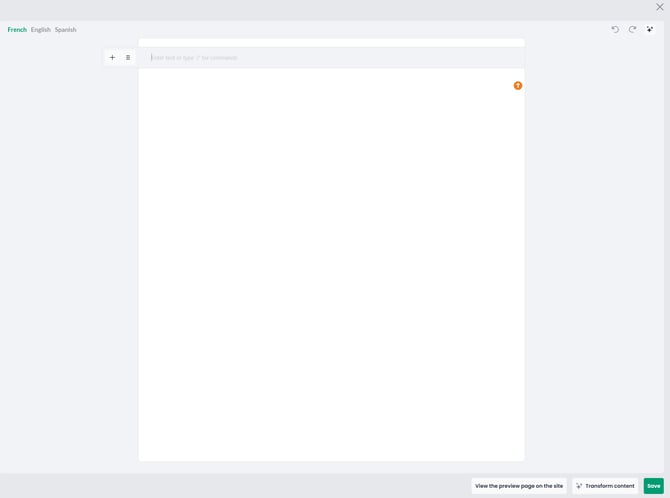
Each line corresponds to a content block.
When you press Enter, a new block is created automatically.
Insert a content type
To insert a specific element:
-
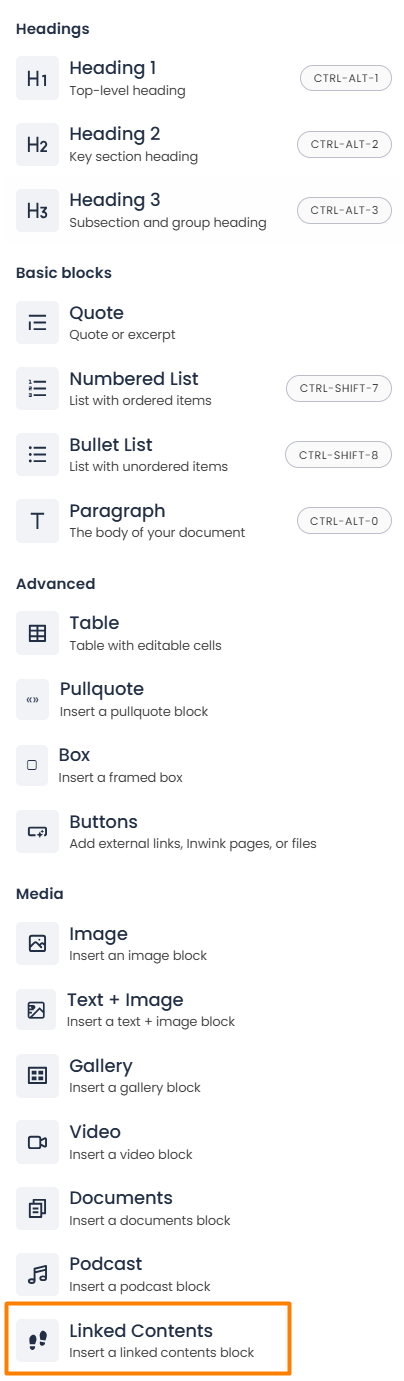
Type / or click on the +
-
Select the desired block type
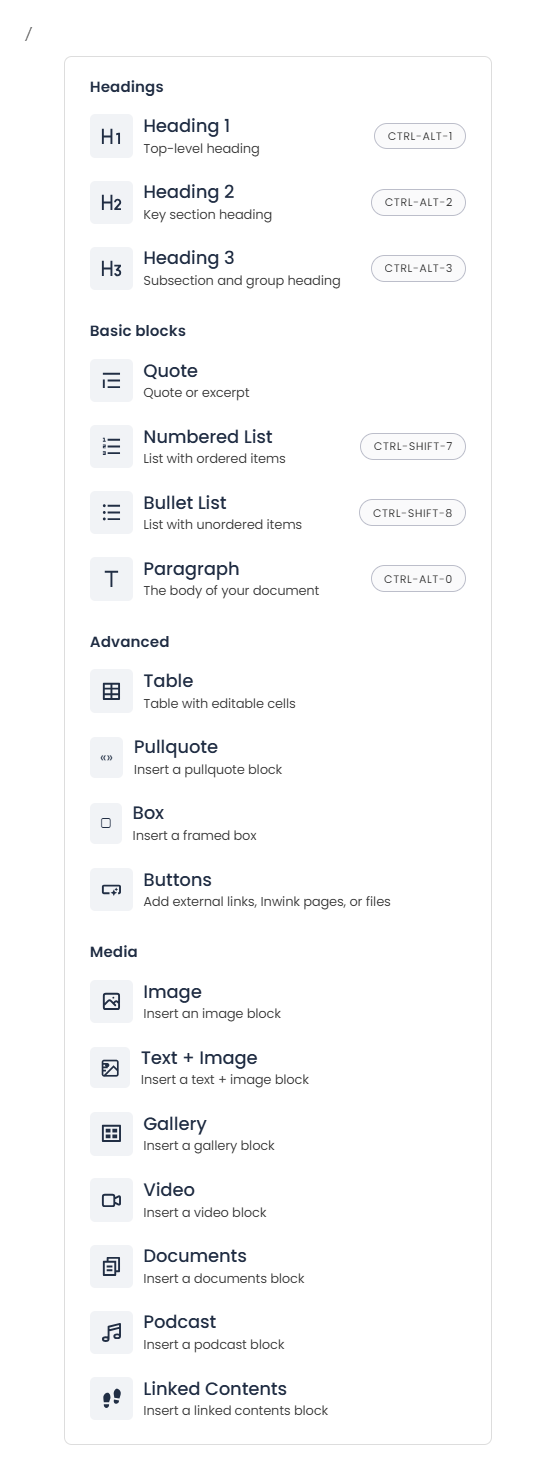
Each block is grouped into different block categories:
-
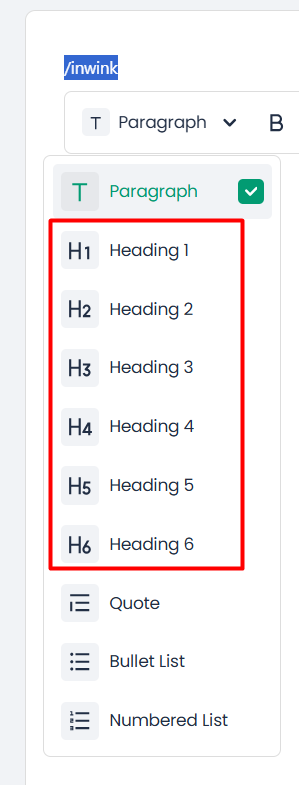
Heading
-
Basic blocks
-
Advanced
-
Media
This feature allows you to quickly insert different types of content into your page.
Text formatting
Select text to display the formatting options:

You can apply:
-
Bold
-
Italic
-
Underline
-
Strikethrough
-
Code button
-
Color palette (to change the text color)
-
Highlight (to change the text background color)
You can also:
-
Turn text into a link
-
Turn text into a quote
-
Adjust spacing and text layout options
-
Add an image
-
Use an AI assistant to help you write your text.
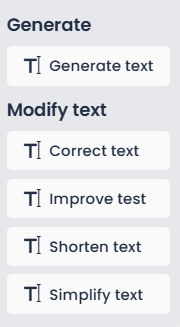
These options help you structure your content and improve its readability.
Managing blocks
Move a block
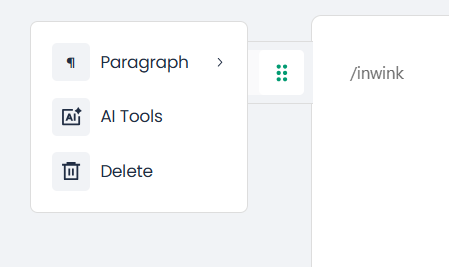
Hover your mouse to the left of a block to display the drag handle.
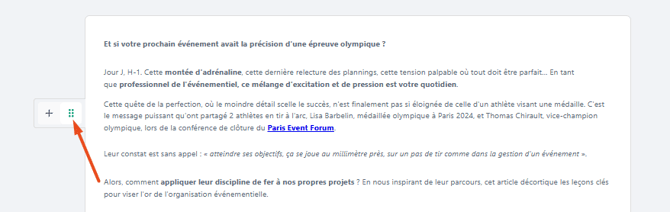
You can then:
-
Drag and drop the block
-
Easily rearrange your content