
Creating and using a parent community
A parent community allows you to centralize access to several child events from the same main community, while maintaining a smooth navigation experience for users.
It is particularly useful for offering users a single entry point, with no break in the experience between the main community and its associated child events. This setup is recommended for simple events that include, for example, only a very small number of pages.
What is a parent community?
A parent community is an inwink community used as the main navigation space, or as a “showcase” website.
From this community, users can access events linked to the same audience, without leaving the parent community environment.
Prerequisites
To activate a parent community, you must have a root community.
The option to activate a parent community is only available if the relevant community is a root community.
Activating a parent community
To activate a parent community:
- Go to the audience where your root community is hosted.
- Open the community you want to use as the parent community.
- Open the community options by clicking the edit pencil.
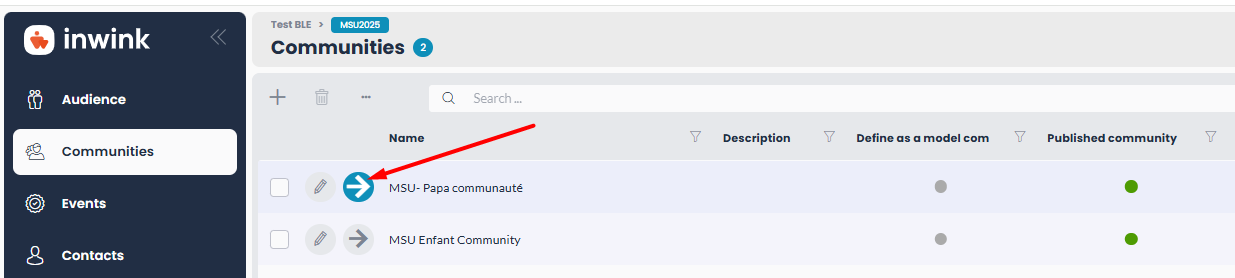
- Activate the option that defines this community as a parent community.
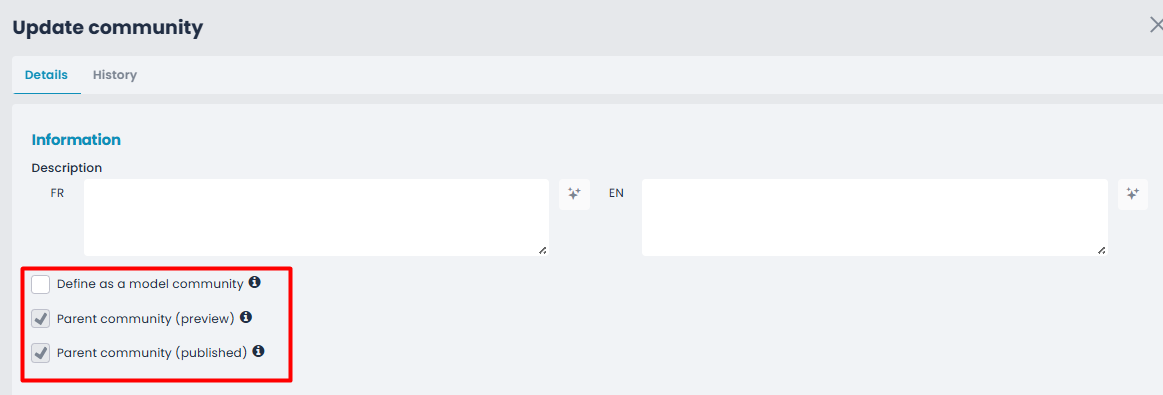
Reminder: this option is only visible for communities that you have defined as root communities.
Testing the activation in preview mode
Activating a parent community must be tested carefully before publication.
Start by activating preview mode to check:
- navigation within the community;
- opening of associated events;
- menu display;
- personal space behavior;
- footer display;
- the overall user experience.
Once the configuration has been validated in preview mode, you can switch to the published version.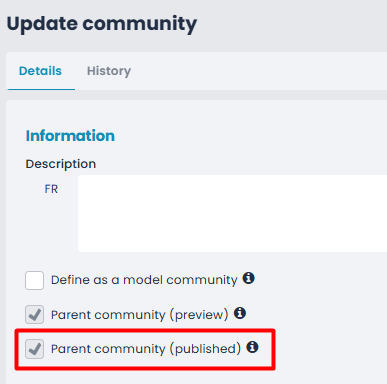
‼️ Warning: activating a parent community must be carefully prepared, as it is not possible to go back once it has been activated.
How a parent community works
Once activated, the parent community remains and works like a standard community.
When you access it, you will find the usual inwink community behavior, including:
- the horizontal menu;
- the burger menu;
- the community pages;
- the member space, as you are on a community;
- the community footer.
The main difference concerns the way child events are opened from this community.
Linking a child event to a parent community
-
Go to the back office of your community > Content > All events.
- Add an event of the “inwink event” type and link the relevant event.
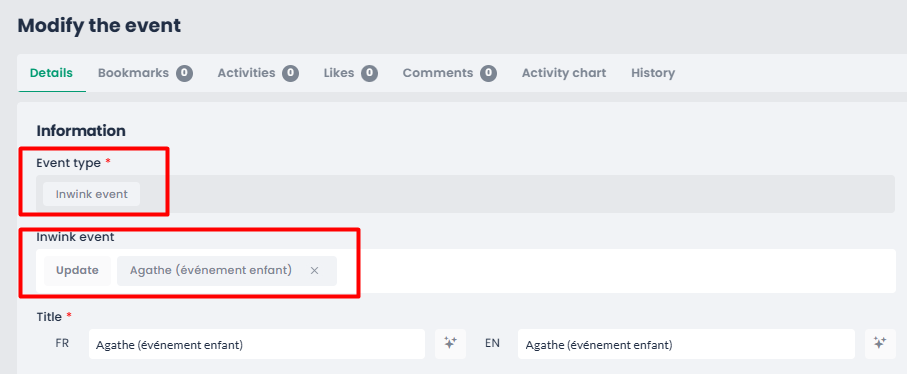
This event will automatically appear in the event preview list of your community.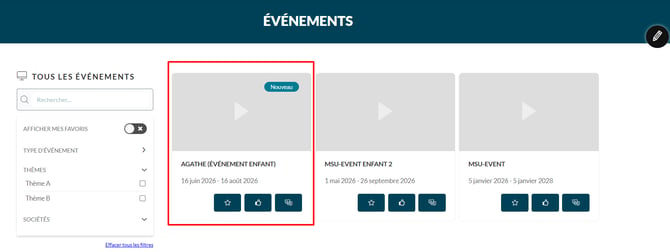
Opening child events from a parent community
When a user accesses a child event from a parent community, they do not leave the parent community.
The event opens inside the parent community environment. There is therefore no break in the experience and no complete page change.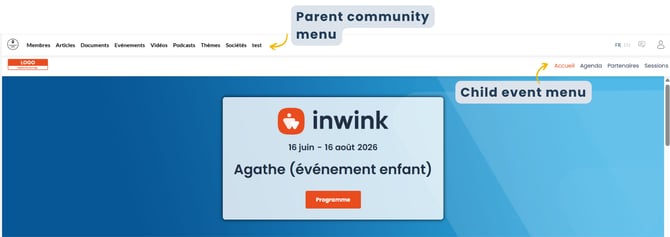
The user can then navigate within the event while staying within the parent community framework.
The only difference is the addition of the child event menu. This second menu can be removed, if needed, which creates a double-menu display.
Managing menus
In a parent community, two navigation levels can coexist:
- the parent community menu;
- the child event menu, opened inside the parent community.
The user can therefore navigate within the event while remaining in the overall community environment.
From the personal space icon, the user can also access the personal space of the relevant event, or switch back to the member space of the parent community.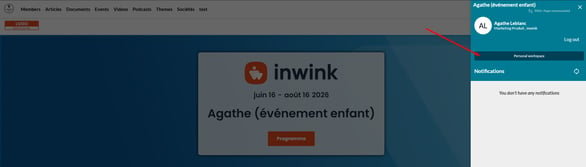
Access to a child event’s personal space, as well as the switch back to the parent community.
These are two separate menus and two separate spaces, but they are accessible within a single experience.
Hiding the menu of a child event
It is also possible to hide the horizontal menu of the child event, to avoid duplication if your event is, for example, built on a single page.
This allows you to keep only the parent community menu and avoid multiplying navigation levels.
To do this, go to the options of the relevant event and disable the horizontal menu display by deleting it: 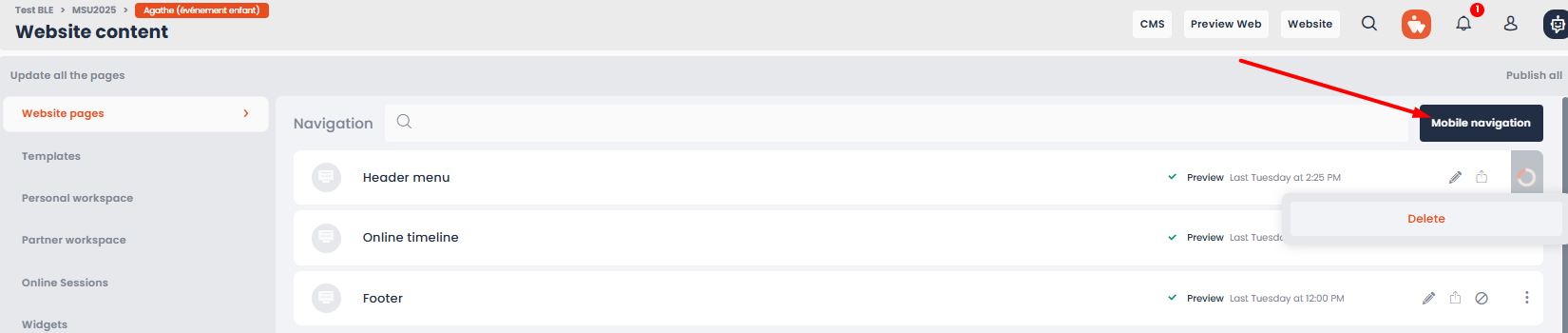
The menu can be recreated if needed using the “Horizontal menu” button, which will appear once the menu has been deleted: 
This configuration is particularly suitable when the event is not intended to be accessed directly, but only through the parent community.
Giving access to an event from a button
If you do not want to display an event in a list, but still want to provide access to it from the parent community, you can add a button to the menu or to a page of the community.
To do this:
- Add an “Action” button in the parent community
- Select the “Open an inwink event” action
- Choose an event from the drop-down list.
➡️ You will only see events that belong to the same audience. - You can also select the event page to open. This step is optional.
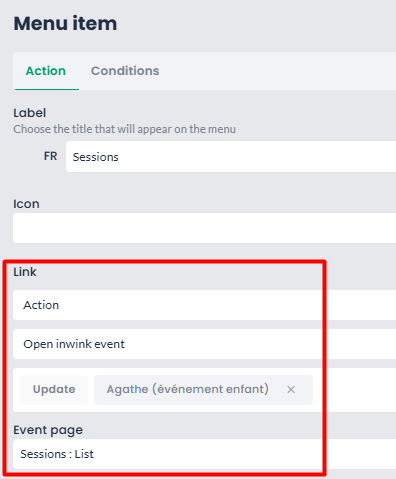
➡️ This setup allows you to create direct access to an event without necessarily displaying it in an event list.
Managing the footer
When the user navigates within a child event from a parent community, the footer displayed is the parent community footer.
Best practices
Before publishing a parent community, we recommend that you:
- test the full journey in preview mode;
- check that child events open correctly;
- review the menus displayed;
- check access to personal spaces;
- test direct access buttons;
- check footer display;
- avoid giving direct access to events if the goal is to centralize the experience through the parent community.
Even in preview mode, events opened from the parent community will also appear in preview mode.
⚠️ It is therefore important to validate the entire navigation before publishing the configuration.
Key takeaways
The parent community allows you to create a unified experience between a main community and its child events.
It helps maintain a single entry point, reduce navigation breaks, and provide users with a smoother experience.
Before activation, it is essential to test the configuration carefully in preview mode, as this activation must be anticipated and validated before publication.