
Notifications allow you to send a message to registered event participants or community members directly from the inwink back office.
They can be used to share practical information, remind participants of a key moment, highlight a session, share a link, or support participants throughout their journey.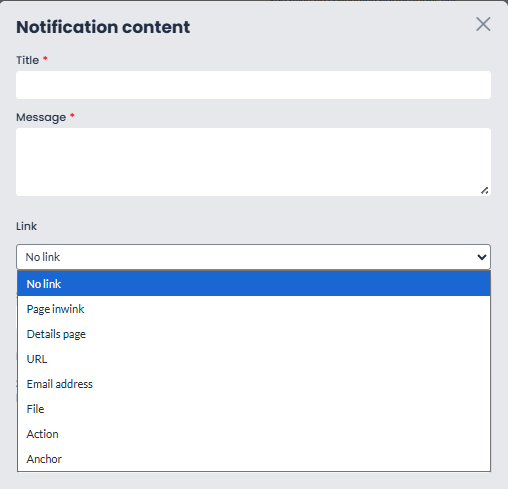
You can schedule a notification to be sent at a specific date and time. Scheduled or already sent notifications can then be tracked from the Scheduled notifications tab.
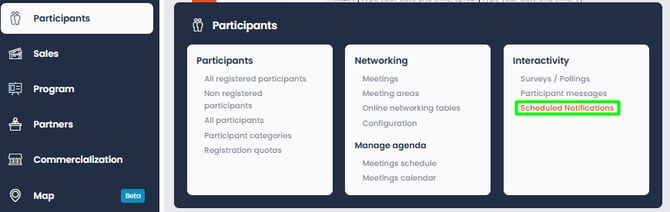
This tab also allows you to import notifications via Excel, so you can prepare several messages in advance.
Access scheduled notifications
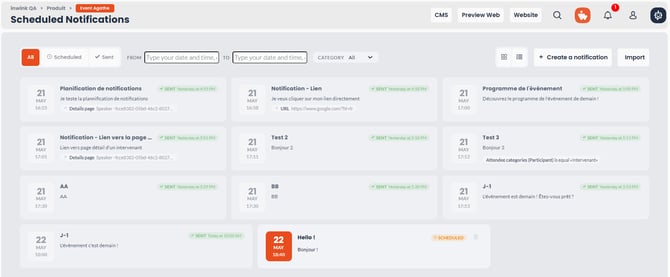
From the back office of your event or community, go to: Participants > Scheduled notifications
This page centralizes the notifications linked to your event or community.
From this view, you can:
- view scheduled notifications;
- view notifications that have already been sent;
- track the sending date and time;
- filter notifications by status;
- create a new notification;
- import notifications using an Excel file.
Send or schedule a notification from the participant list
Notifications can also be created from the participant list of your event or from the member list of your community.
To send a notification:
- Go to the back office of your event or community.
- Open the registered participants / members view.
- Select one or more participants, filtering the list if needed to target the right recipients, or select the entire view directly.
- Click the Notify selection action.
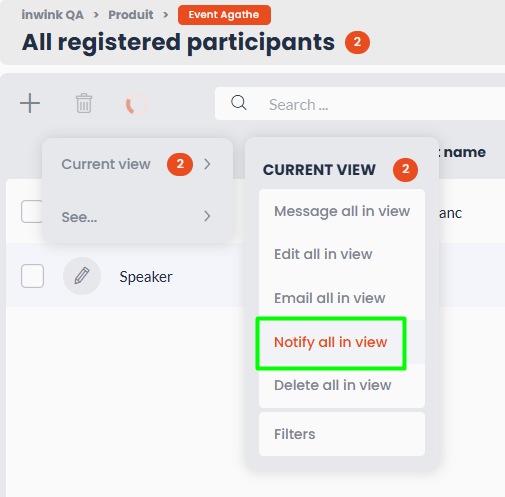
The notification will be sent to the participants included in the selected view.
You can send a notification:
- to one specific person, by filtering the view for that participant;
- to a segment of participants, based on the filters applied;
- to all participants included in the view.
A creation window opens, allowing you to enter the notification content.
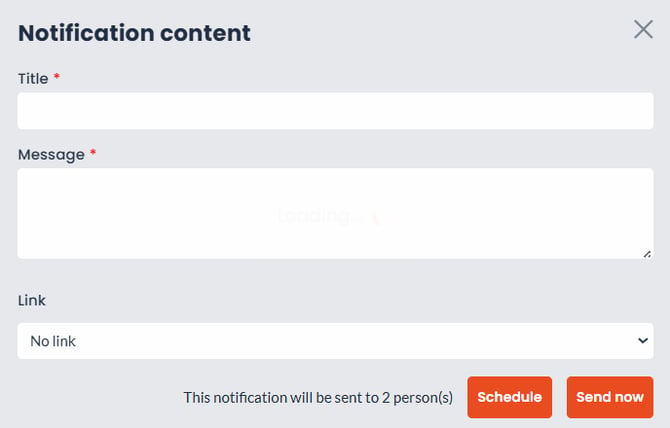
You can add:
- a title;
- a message;
- a link to:
- an inwink page;
- a detail page;
- a URL;
- an email address;
- a file;
- an action;
- an anchor.
From this window, you can choose to send the notification immediately or schedule it using the Schedule button.
Schedule the sending date and time
To schedule the notification, click Schedule from the notification creation window.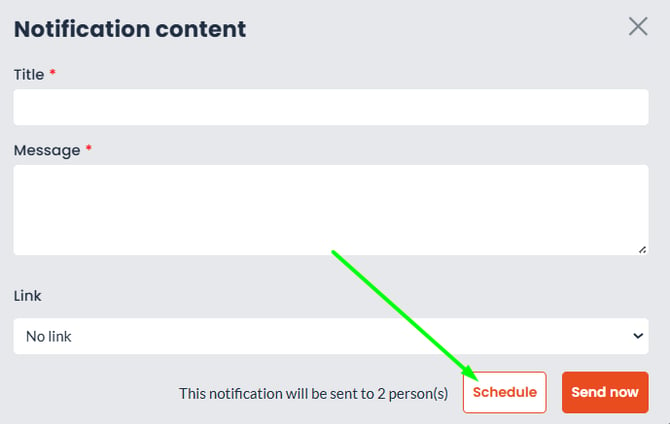
You must then enter:
- the sending date;
- the sending time.
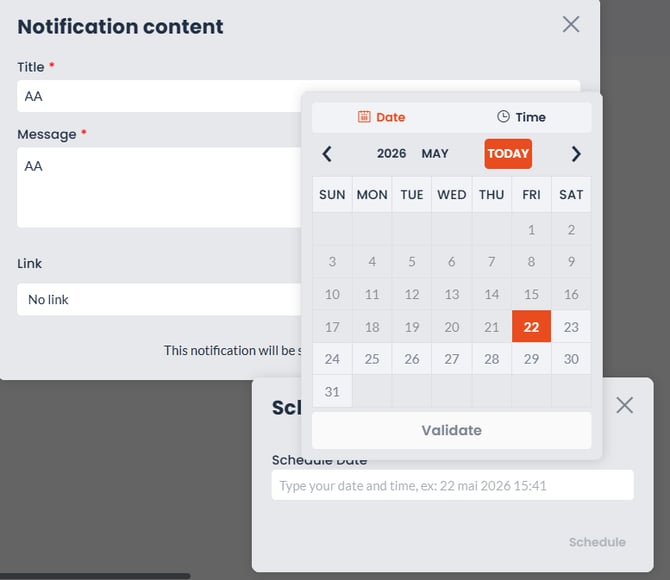
A notification cannot be scheduled in the past.
The selected date and time must therefore be later than the time of creation.
Once the notification has been validated, it is added to the Scheduled notifications tab, where you can track its status and sending date.
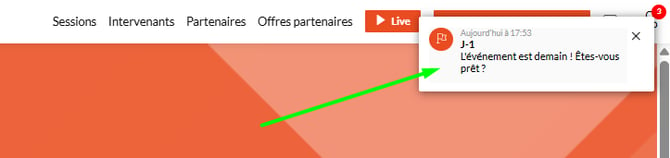
Where are notifications visible?
Notifications are intended for registered and logged-in participants.
Depending on the setup enabled for your event or community, they can be displayed:
- on the event website;
- in the event mobile app;
- in the community web environment.
They allow you to share information directly within the participants’ digital journey.
Track notifications from the dedicated tab
The Scheduled notifications tab allows you to track all notifications linked to the event or community.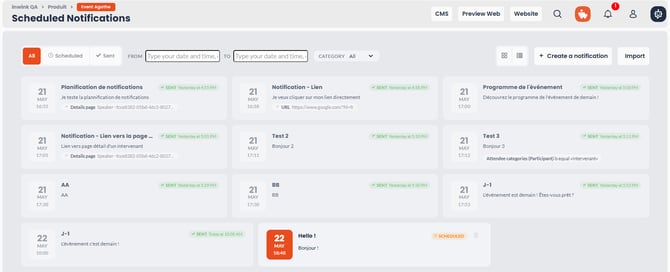
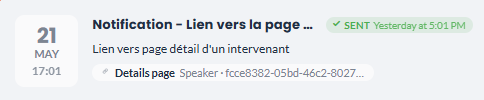
Each notification displays, among other information:
- its title;
- its message;
- the sending date;
- the sending time;
- its status;
- the target audience, depending on the view used.
Filters make it easier to find notifications by status, for example scheduled notifications or notifications that have already been sent.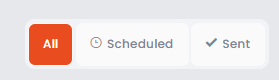
You can also search for your notifications by date and time.
You can also display your notifications in chronological order.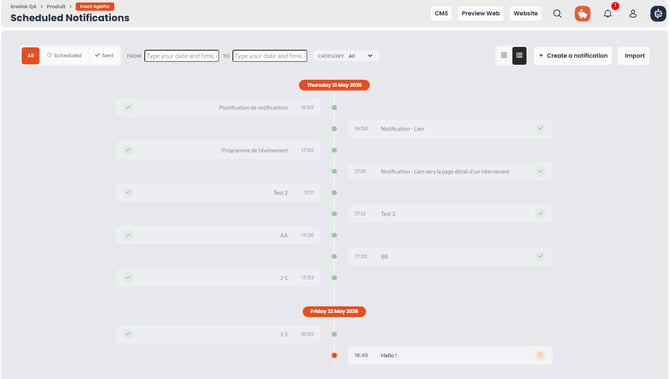
Import notifications via Excel
From the Scheduled notifications tab, you can import notifications using an Excel file.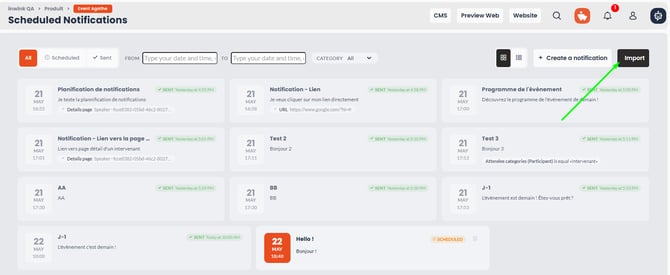
➡️ This feature is useful if you want to prepare several notifications in advance, for example for an event with several key moments or for a scheduled communication sequence.
From this page, you can export an Excel template, complete it, and then reimport it into inwink.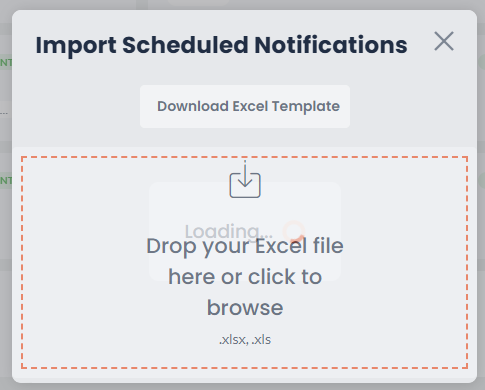
The file allows you to prepare:
- the notification content, including the title and message;
- the sending dates and times;
- the target audience you want to send the notification to. If no target audience is added, the notification will be sent to all registered participants.

Once the file has been imported, the notifications are created and scheduled according to the information entered.
Push notifications via the mobile app
If the organizers have a mobile application, scheduled notifications (for an event or community) are also delivered as push notifications.
They allow users to be alerted directly on their smartphones, in addition to other channels, ensuring better visibility and higher open rates.
Examples of use
You can schedule notifications to:
- remind participants that the event is about to start;
- notify participants that a session is starting;
- share a change of time or room;
- push a link to an exhibitor page, a session, or a piece of content;
- remind participants of an appointment or key moment;
- support community members with regular messages;
- prepare a sequence of notifications in advance for the event day.
Key takeaways
Scheduling notifications allows you to prepare your messages in advance and send them automatically at the right time.
From the participant list, you can precisely target recipients: one person, a filtered segment, or an entire view.
From the Scheduled notifications tab, you can centralize sent and upcoming notifications, import notifications via Excel, and track the messages sent to registered and logged-in participants or members.